
Adding a modern touchscreen to my 2015 Toyota RAV4 made the car a lot more enjoyable to use. I love having my audiobooks and Apple Music available through CarPlay, and I was able to connect this head unit with adapters instead of cutting the factory wiring.
This Toyota RAV4 stereo installation guide walks through my 10.1-inch Android head unit upgrade: removing the original radio, transferring the factory vents and clips, connecting the wiring, and setting up the controls. The kit is sold for 2013–2018 RAV4 models, but my hands-on installation was in a 2015. Check the exact fit and audio-system compatibility before ordering.
Affiliate disclosure: I may earn a small commission if you purchase through my links. Your price stays the same, and it helps support SLVRBCK Troop. As an Amazon Associate, I earn from qualifying purchases.
What changed—and what I gave up
The bigger screen and access to my phone’s audio were the main wins. The finished unit sits slightly proud of the surrounding dashboard, which I showed in the video, but I liked how the overall installation came together.
- What I use: Apple CarPlay for music and audiobooks in my 2015 RAV4.
- What the kit advertises: Wireless CarPlay, Android Auto, Bluetooth, GPS, and camera support. The working CarPlay connection is shown in my video; I did not demonstrate every advertised feature.
- What to plan for: This installation requires the supplied external microphone. My factory microphone did not work with the replacement unit.
- What is missing: This head unit does not provide satellite radio. Do not buy it expecting the original satellite-radio setup to carry over.
Watch the complete installation
Before you start: check the kit and your RAV4
A matching year range is the starting point, not the whole compatibility check. Confirm the kit supports your trim, factory audio system—including JBL if fitted—camera, steering-wheel controls, and dash layout. Camera and USB retention depend on the correct adapters. Compare photos of your dashboard and connectors with the seller’s information.
My kit included the screen and fascia, several wiring adapters, USB leads, an external microphone, a GPS antenna, an aftermarket backup camera, a trim tool, mounting pieces, and instructions. I retained my existing camera connection rather than demonstrating a full installation of the supplied license-plate camera.
- Have a trim-panel tool, a 10mm socket with ratchet and extension, and the screwdriver needed for the kit’s mounting pieces.
- Use a soft cloth to protect the dash and a small container to keep the original screws and clips together.
- Photograph the original connections before unplugging anything. Keep the old parts until all retained features are tested.
Park securely, set the parking brake, switch the vehicle off, and follow your vehicle’s instructions for disconnecting the negative 12-volt battery terminal before working on the radio wiring. Crutchfield’s RAV4 installation reference also outlines the factory radio removal. For a hybrid or a different factory system, use the instructions specific to that vehicle.
Step 1: prepare the new head unit on the bench
Before working inside the car, attach the mounting pieces supplied with the kit. My pieces had keyed shapes and slots that helped identify their positions. Install the correct pieces on the correct sides, following the kit instructions.
The kit also included blank inserts for a dashboard configuration different from mine. I did not need those. Lay everything out first so you are not discovering optional parts while the original radio is already removed.
Step 2: release the dash trim and clock/hazard panel
The factory removal section starts at 2:17 in the video. Use the panel tool to release the long dash trim strip a section at a time. Work along the clips instead of bending the strip by pulling hard from one end.
Next, release the clock/hazard assembly and move it out of the working area while supporting it and its wiring. Place a cloth beneath it to protect the dashboard. If a panel resists, check the next retaining point before applying more pressure.
Step 3: remove both vents and the factory radio
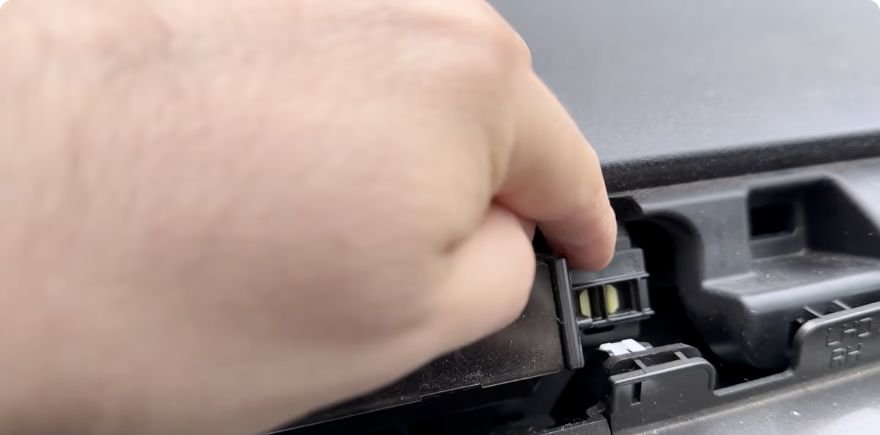
Release the side vent assemblies and set them aside carefully. These are parts you will reuse. With the vents out, remove the four 10mm fasteners holding the original receiver. Once a fastener is loose, finish removing it carefully so it does not drop into the dash.
Support the radio as you release its remaining clips and bring it forward. Photograph the back, then press each connector’s latch to unplug it. Pull on the connector body rather than the wires.
Step 4: transfer the vents and metal retaining clips
The new unit needs more than a wiring connection. In my installation, the factory vent pieces and metal retaining clips had to be transferred to the replacement fascia. The preparation section begins at 4:48.
Separate the reusable vent sections by releasing their small plastic tabs. Carefully remove the metal clips from the original assembly and fit them to the corresponding mounting points on the replacement. Keep left and right parts matched, align the guides, and press straight until the tabs seat. Do not force a piece that is lined up incorrectly.
This is an easy step to overlook during unboxing. Missing or damaged clips can leave an otherwise finished stereo loose in the dashboard.
Step 5: connect the vehicle-specific wiring adapters
My wiring walkthrough begins at 6:06. Connect the kit’s matching vehicle adapter to the factory harness, then connect the required plugs to the back of the new unit. Use the wiring diagram and connector labels; a similar shape alone is not enough to identify a connection.
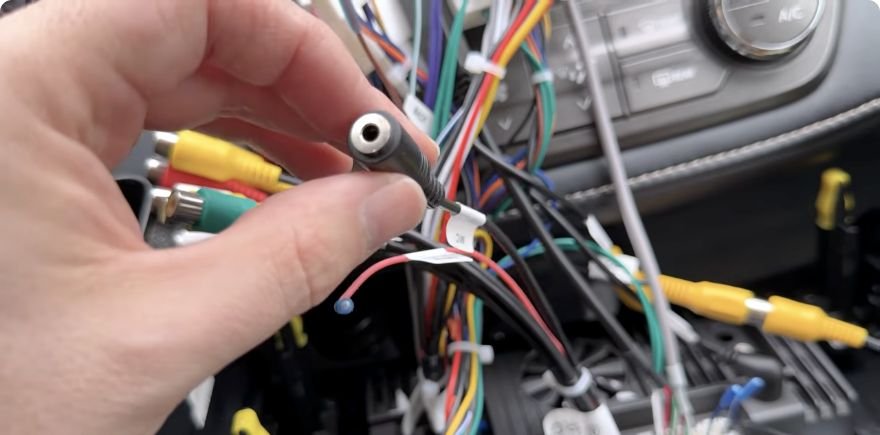
In my setup, I connected the yellow camera video connection, the supplied microphone connection, and the required USB connections. I also used my existing four-pin USB connection for the port below the dash. That describes my configuration, so confirm the adapter instructions before assuming your original USB port will work the same way.
Some supplied branches were not needed for my installation. You do not need to find a home for every unused accessory lead, and the old CD-player functions do not automatically transfer to the new touchscreen. Leave the factory wiring intact when the correct plug-in adapters are available.
Step 6: route the external microphone and GPS antenna
The external microphone was required in my car because the factory microphone did not work with this unit. I routed the supplied mic to a convenient position near the dashboard instead of taking it through the overhead area. I did not want to disturb the airbag-panel area.
Choose a route that keeps the cable away from airbags, pedals, moving parts, and sharp edges. Connect it to the designated microphone input and secure spare cable so it will not interfere with the radio or trim. Test a call before you finish reassembly.
I also connected the supplied GPS antenna and placed it near the top of the dash area. In the video, I was still unsure about its reception there, so I would not present that location as a proven solution. Follow the antenna placement instructions and confirm reception if you plan to use the unit’s own navigation.
Step 7: test the connections before closing the dash
With the unit supported and the wiring clear, restore power according to the vehicle and kit instructions for a controlled test. Check that the unit starts, that audio reaches the speakers, and that the phone connects. Verify the microphone and any factory ports you intended to retain.
Test the camera in a safe, stationary setup with the vehicle secured. My video focuses on the head-unit connection to the existing camera; it does not provide a complete guide to routing a new rear-camera cable or wiring a reverse-light trigger. If you are installing the included camera, follow its separate instructions.
If anything fails, resolve it while the connectors are accessible. Switch off and isolate power again as instructed before changing wiring.
Step 8: fit the screen and reinstall the adjoining trim
The reassembly section starts at 8:37. Arrange the wiring behind the unit so it cannot be pinched, then line up the mounting points. Follow your kit’s retention instructions: my replacement used its clips, but that is not a reason to leave required fasteners out of a different kit.
Position the adjoining trim before pushing everything fully home. On my kit, its lip needed to sit behind the new assembly. Trying to snap that trim in after seating the stereo made it difficult to get the pieces aligned. Once positioned together, I could press the assemblies into place and check the fit around the edges.
Step 9: configure the steering-wheel controls
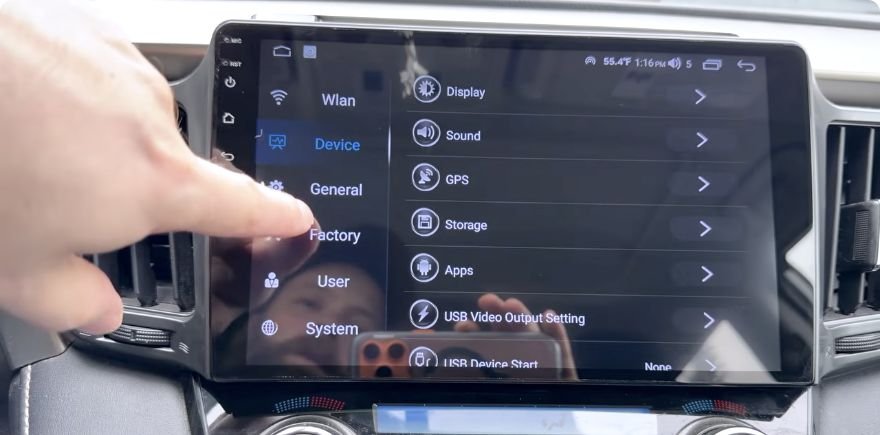
At 9:19, I opened Settings, entered the Factory menu, and selected the Toyota RAV4 configuration in Car Mode. The factory-menu code shown for my unit was 3368; use the code and profile supplied for your exact unit if yours differs.
My volume controls worked after configuration. Test each button individually, including track changes and any phone functions you expect to retain. If the controls still fail, verify the vehicle-specific interface and seller-recommended profile instead of changing unrelated factory settings.
Step 10: connect CarPlay or Android Auto and update the software
Open the head unit’s phone-integration app and follow its pairing instructions for your phone. For wireless setup, enable the phone’s Bluetooth and Wi-Fi and accept the relevant connection prompts. The app name and initial pairing steps can vary by the unit’s software.
I showed Apple CarPlay connected to my phone at the end of the video. I love using Apple Music and audiobooks in my 2015 RAV4. Android Auto is an advertised option on this kit, but I did not demonstrate an Android-phone setup in this installation.
Updating the head unit was straightforward for me: connect it to Wi-Fi, then run the software update through the unit’s update function. Use the built-in update route or the exact firmware supplied by the seller for your model. Keep the power stable and do not interrupt an update or install a file meant for another head unit.
Final checks and troubleshooting
- No sound: Recheck the correct audio harness and, where applicable, support for the factory amplifier.
- No camera image: Check the camera input, adapter, and camera-format configuration against the kit instructions. A connector plugged in is not proof that the required adapter is correct.
- Steering-wheel buttons do nothing: Verify the interface and vehicle profile, then test again.
- Calls have no usable microphone audio: Confirm the supplied external mic is connected to the correct input and positioned properly.
- Trim will not sit flush: Check for trapped cables, missing clips, and the adjoining panel lip before pressing harder.
Before driving, check the clock/hazard controls, vent operation, stereo retention, sound, phone pairing, and camera operation. Adjust audio settings while parked. I would start with a neutral EQ and make small changes rather than assume a particular DSP preset is best for every RAV4.
Was this RAV4 stereo upgrade worth it?
For my 2015 RAV4, yes. The big improvement is having the phone audio I actually use on a much larger screen. Running an external microphone did not bother me, and the Wi-Fi software update was easy. The lack of satellite radio is the tradeoff to understand before buying.
Check the 10.1-inch RAV4 stereo kit on Amazon. Confirm the exact unit and compatibility with your RAV4 before ordering. This is an affiliate link; I may earn a small commission without changing your price.
For more projects with real demonstrations, visit my DIY & How-To articles.