
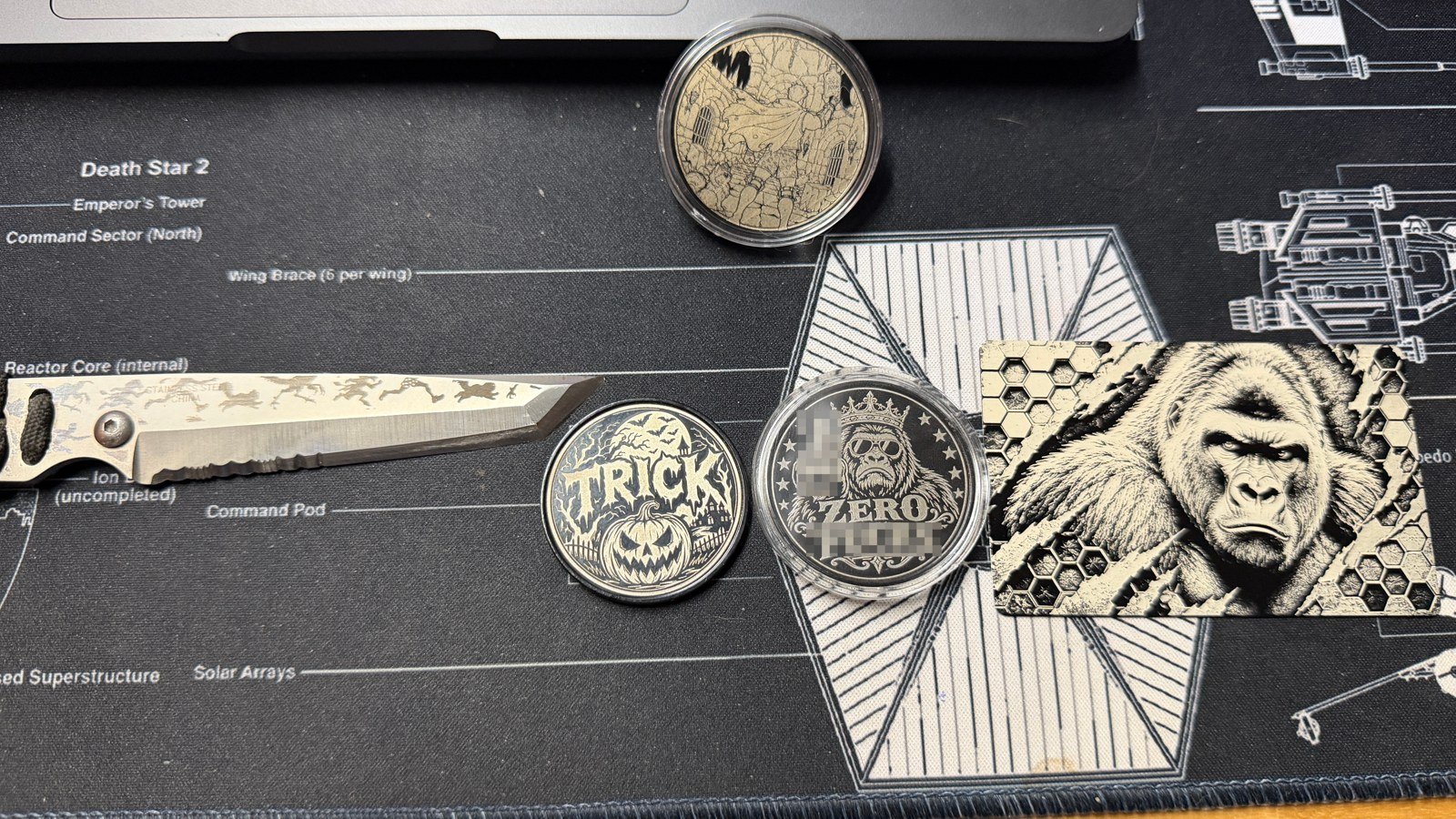
The Monport GM 30W Pro MOPA fiber laser has quickly become my new favorite tool in the workshop. I recently received it, and I have already put it to work on anodized steel coins, anodized aluminum cards, and a knife. What has impressed me most is how straightforward the physical setup was, how useful autofocus is, and how much detail I can get into a small project.
This review covers my early hands-on experience, photos of the pieces I have made, and the Monport GM Pro autofocus calibration reset that I had trouble finding explained online. If your autofocus stops at the wrong height, that section is the place to start.
Affiliate disclosure: As an Amazon Associate, I earn from qualifying purchases. If you buy through my links, I may earn a small commission at no extra cost to you. It helps support SLVRBCK Troop.
Purchase disclosure: I bought this Monport laser at the regular price.
See my Amazon review of the Monport laser
My setup at a glance
- Machine: Monport GM 30W Pro MOPA fiber laser engraver.
- Laser output: 30 watts.
- Marking area with my lens: 175 × 175 mm, approximately 6.9 × 6.9 inches. This is the engraving field, rather than the size of the entire metal workbench.
- Focus: One-button autofocus, with manual height adjustment available.
- Software I use: LightBurn Pro; budget for the appropriate license if your purchase does not include one.
- Included accessories I appreciate: Positioning guide rails and a foot pedal for repeat work.
Check the exact model and lens before comparing settings. The standard GM Pro and the MOPA version are not interchangeable specifications. Monport lists a 175 × 175 mm field for the GM30 MOPA Pro in its GM Pro specifications.
Easy physical setup, with room to learn the software
Getting the machine physically connected was easier than I expected: just a few connections, and I was ready to move on to setup. That is different from having every material and engraving setting figured out. I would separate the two when deciding what to expect as a new owner.
The positioning bars give me a reference for lining up pieces. The foot pedal is also a useful addition when repeating a job, because it can reduce the back-and-forth between the workbench and computer once a job and fixture are properly set up. Neither accessory replaces checking the work position before starting.
Monport GM 30W Pro autofocus: normal use versus calibration
Autofocus is one of my favorite features. For normal use, the material needs to be under the autofocus sensing spot; press Autofocus and allow the head to finish moving. Monport describes that everyday sequence in its GM Pro quick-start guide. Keep hands and obstructions clear while the head moves.
Recalibrating the stored focus position is a separate operation. The procedure below is the one I used on my unit. It is not a universal reset for every Monport laser, lens, or firmware version. Confirm it against the instructions or support guidance for your exact machine before changing its saved reference.
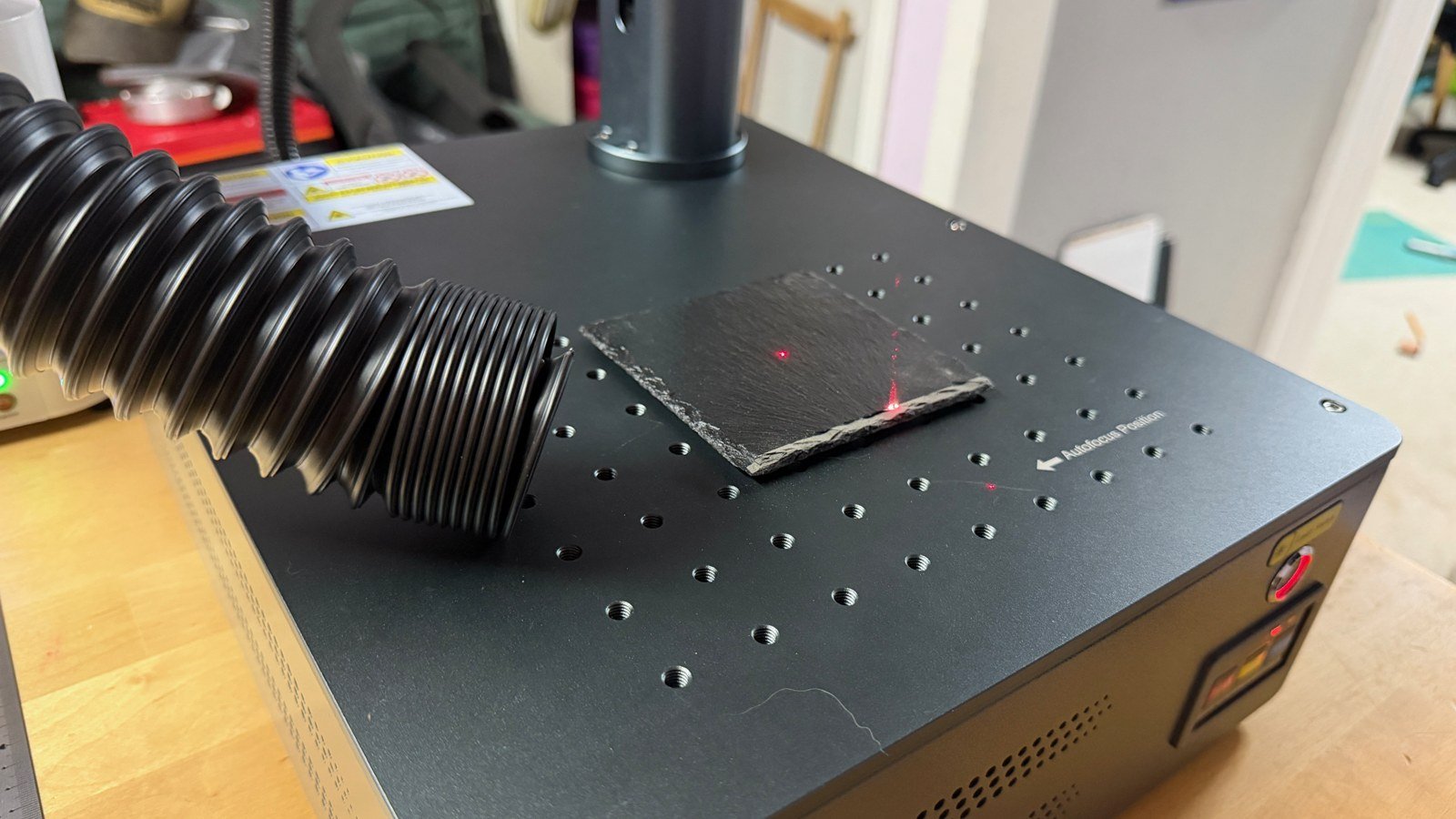
How I reset my Monport GM Pro autofocus calibration
The important detail is the calibrated height printed on your own machine. Mine has that measurement on its side. Do not copy a focal height from another person’s machine or substitute the 175 mm marking-field dimension: those are different measurements.
- Read the machine’s calibrated height. Identify the measurement and the exact reference points used by its label and instructions. If those points are unclear, ask Monport before measuring or resetting anything.
- Clear the workbench and sensing position. Remove the workpiece and fixtures from under the laser. Keep the marking beam disabled during this height check, using the manufacturer’s controls while retaining power for height movement.
- Run Autofocus on the empty workbench. On my unit, it should return to the labeled calibrated height. Let movement stop, then compare the actual distance with that measurement.
- Correct the height manually if necessary. Use the height controls to reach the specified distance, measuring between the designated reference points. Keep the measuring tool out of the movement path; do not force the head or move beyond its travel limits.
- Save that reference. With the height correct, I press and hold Down + Autofocus together until the indicator blinks green, then release. On my machine, this stores the corrected autofocus reference.
- Check the result. Run the empty-workbench autofocus check again and measure after movement stops. Then return to the normal material-focusing procedure. If it still stops at the wrong height or the expected indicator does not appear, stop and contact Monport rather than trying unrelated button combinations.
This was the setup detail I most wanted to share. Pressing Autofocus is simple, but it helps only when the stored reference is correct. A reset also is not a fix for a tilted head, wrong lens profile, or unsuitable sensing surface.
What I have made with the 30W MOPA laser
These are my own project photos, rather than product-listing examples. They are the biggest reason I am so pleased with this machine already. I have not finished a YouTube review yet, so this article is my first look at the results and setup experience.
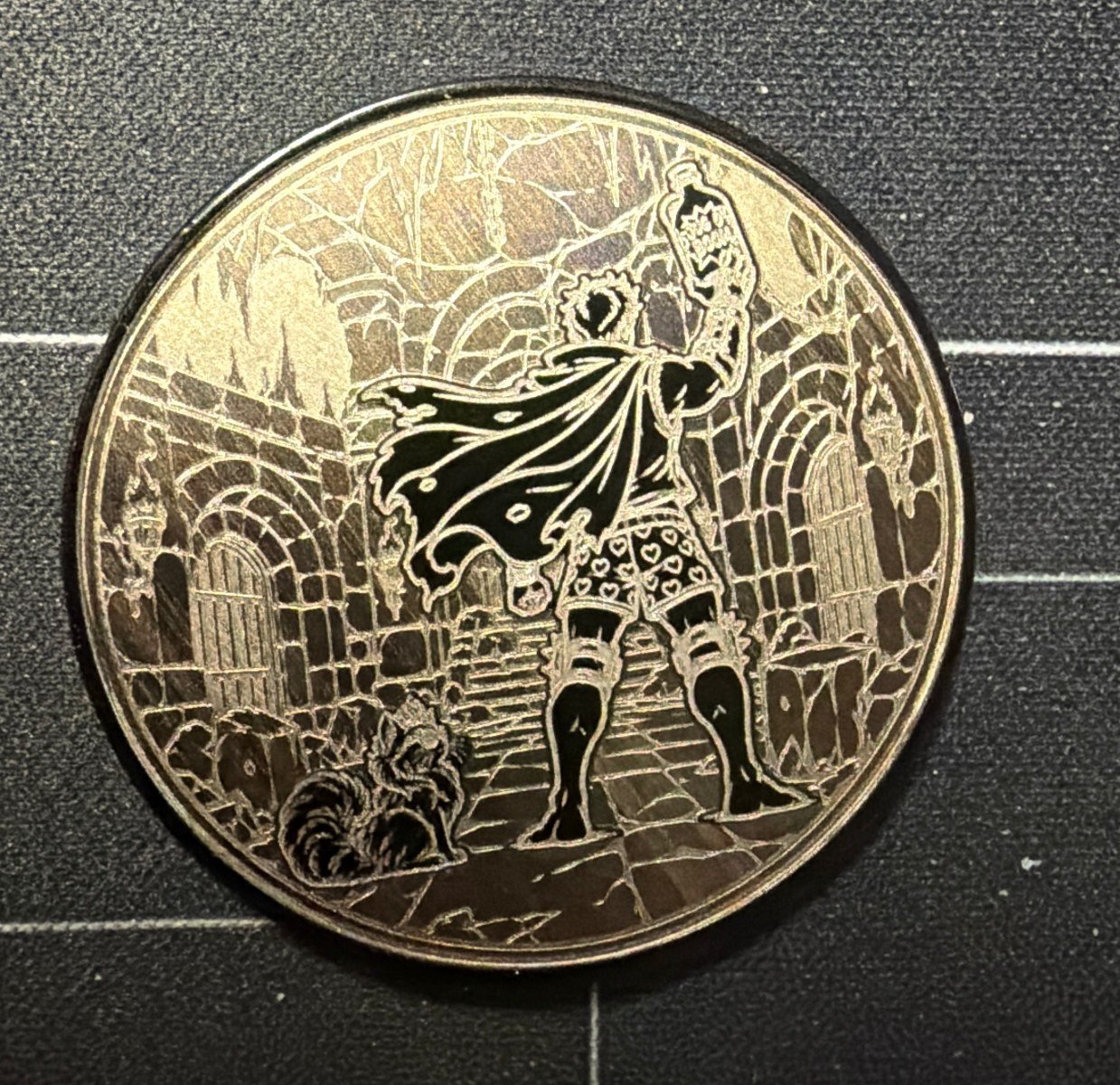
Anodized steel coins
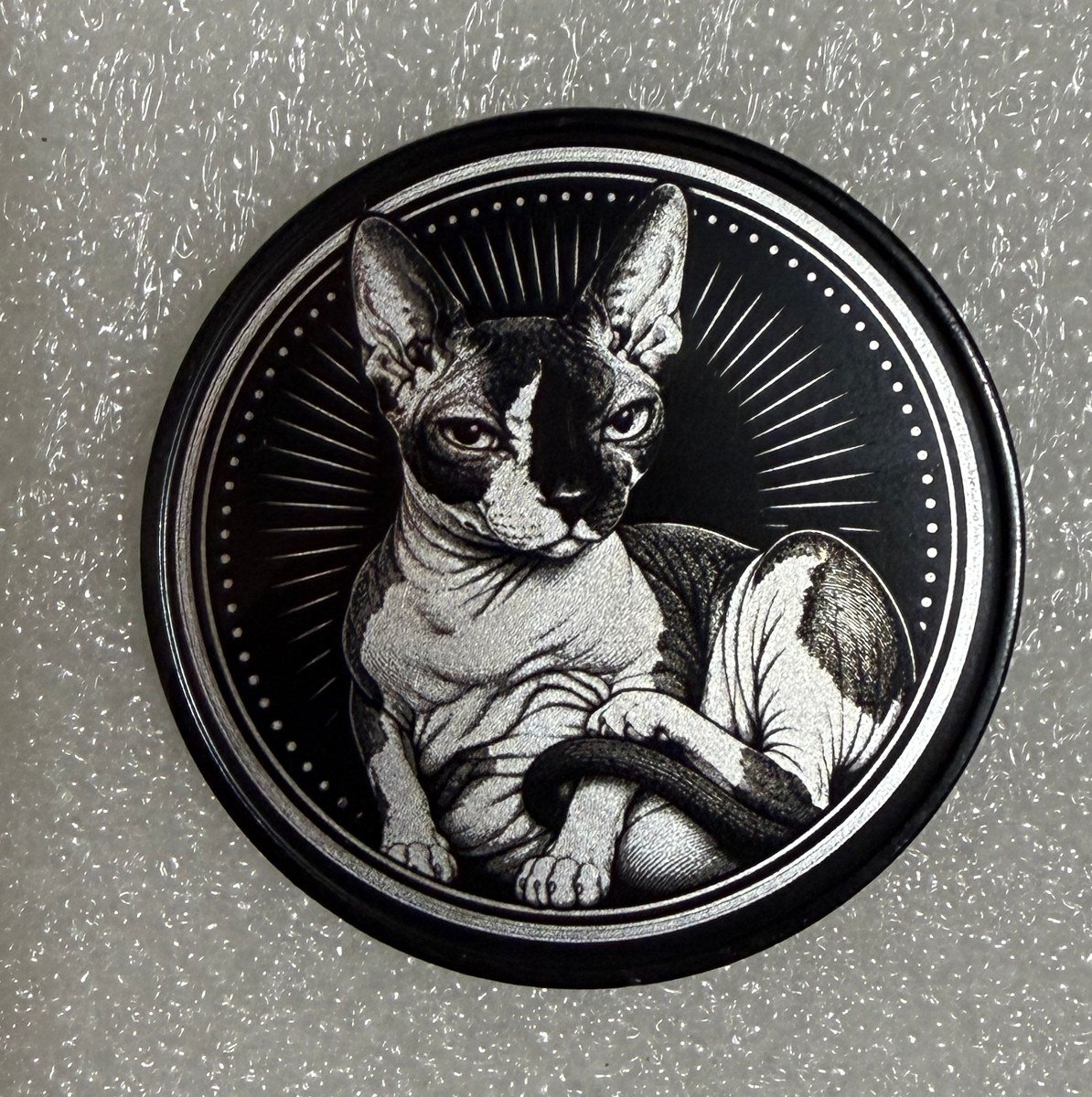
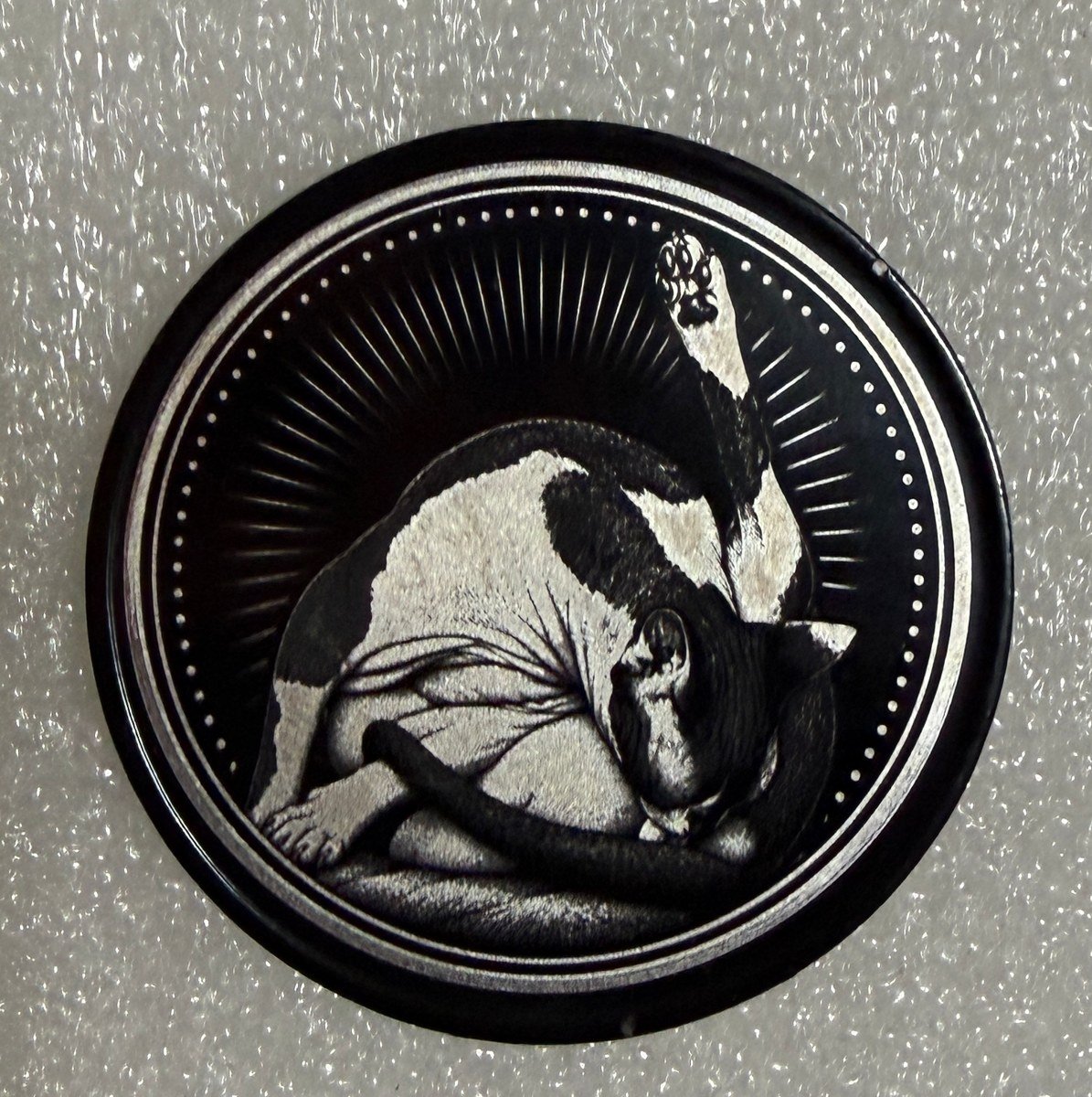
The coins shown here are anodized steel, using the material description for my blanks. The cat designs and illustrated coin show the sort of small details that make this satisfying: fine outlines, textured areas, and strong contrast in a piece I can hold in my hand. I am describing the finished appearance, not claiming a measured engraving depth or a particular production speed.
Anodized aluminum cards and other projects
I have also engraved anodized aluminum cards, including a SLVRBCK Troop design, and tried a design on a knife. Being able to move from a small coin to a rectangular card has given me plenty of ideas for what to make next.
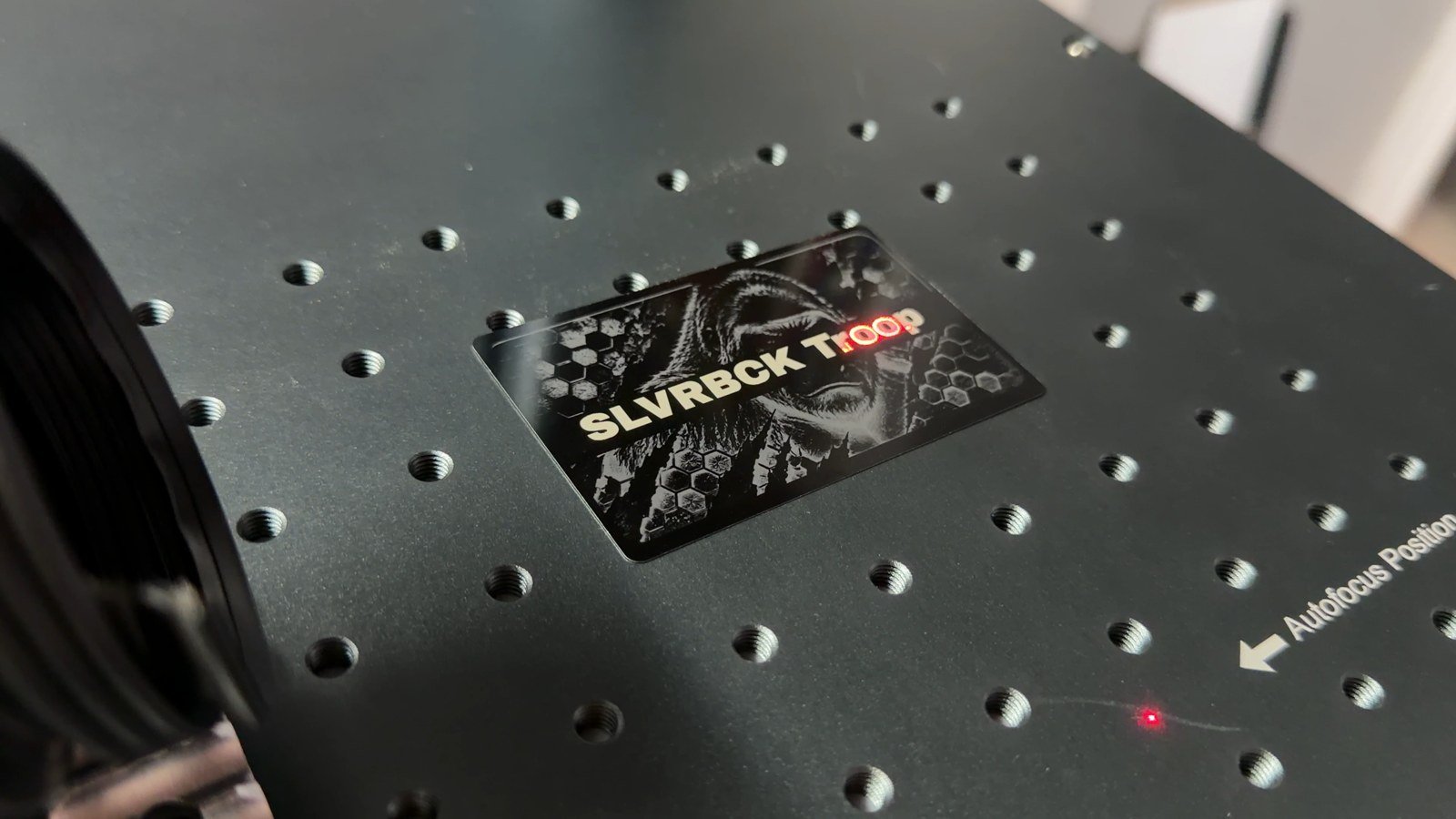
The photos show what I have achieved on these specific blanks. Different coatings, metals, artwork, and settings can produce different results. I am not publishing a universal power-and-speed recipe here, or presenting these monochrome projects as a test of stainless-steel color marking.
Which LightBurn license does the GM Pro need?
For LightBurn use, this galvo machine needs LightBurn Pro. The lower-cost Core license is intended for supported GCode machines. LightBurn explains the difference on its official license guide, and existing Core owners can upgrade to Pro.
Check whether your seller bundles a license before buying another one. Use the machine-specific configuration and lens information supplied with your unit, and keep a backup before changing settings. Buying Pro and setting the physical autofocus reference are separate steps; one does not automatically configure the other.
A few things I would know before buying
My experience so far is very positive, especially the easy physical setup and autofocus. The main things to plan for are the size of your projects within the 175 mm field, the software cost, a suitable workspace, and time to learn settings for your own materials. This is an early ownership review, not a long-term reliability test or a comparison against every competing fiber laser.
Laser safety matters: Do not rely on the listing’s “Class 5” wording as a safety classification. Follow the classification and controls on the actual machine and in its manual. A high-power open-beam fiber laser needs appropriate engineered beam containment, wavelength-rated eye protection, controlled access, and suitable fume extraction. The FDA explains that Class 4 lasers can injure eyes and skin through direct or reflected exposure and can create a fire hazard. Visible red guide dots do not make the marking beam safe. Use only materials and coatings confirmed suitable for laser processing.
My verdict: a workshop tool I keep wanting to use
I am very pleased with the Monport GM 30W Pro MOPA. The projects I have already made have me excited to keep experimenting, and the autofocus makes the workflow feel much more approachable once its reference is set correctly. It really has become my new favorite workshop tool.
If you are researching this machine, I would look at the real project photos, confirm the exact MOPA model and lens, and give that autofocus calibration check some attention during setup. For me, that is a more useful starting point than a long list of marketing claims.
Read my Amazon review · More hands-on reviews · DIY & how-to articles