Introduction
On November 16, 2025, SLVRBCK TROOP—a YouTube channel dedicated to home projects, family adventures and gadget reviews—released a short but action‑packed video titled “Hero Stencil Art – Wolverine is the BEST Superhero – Prove Me Wrong!”. Though the video clocks in at just under two minutes, it packs a surprising amount of craft, technique and geeky enthusiasm. In the video, SLVRBCK TROOP uses cutting‑edge laser‑engraving equipment to cut Wolverine and Deadpool stencils, then spray‑paints a Wolverine stencil into a vibrant piece of art. He also teases the Deadpool stencil for a future project. The creator uses the Creality Falcon 2 22 W laser engraver, LightBurn design software and Adobe tools to design and cut the stencils. He invites viewers to pick a side in the eternal comic‑book debate—Wolverine or Deadpool?—while demonstrating how accessible high‑quality laser‑cutting has become.
A short video can’t possibly delve into every detail, and that’s where this blog comes in. Below you’ll find an extensive exploration of the tools, techniques and cultural context that make SLVRBCK TROOP’s latest project so fascinating. We’ll unpack the video step by step, then dive into background research on laser engraving, Creality’s Falcon 2 22 W engraver, LightBurn software, spray‑paint stencil art, and the comic‑book icons Wolverine and Deadpool. By the end, you’ll have everything you need to replicate the project, learn from the techniques, and appreciate the interplay between makers, tools and pop‑culture fandom.
Before we dive into the nuts and bolts, here’s a conceptual illustration to set the scene. It depicts a laser engraver hovering over a sheet of material, carving out a superhero‑style mask while bright sparks and colourful sprays hint at the fusion of technology and art. This decorative image isn’t from the video itself but evokes the essence of SLVRBCK TROOP’s project.
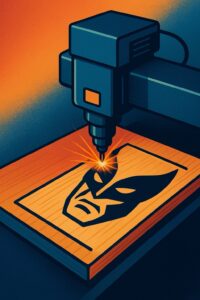
The illustration above serves as a visual metaphor: the clean, geometric form of the laser machine contrasts with the organic texture of the material, while the vibrant colours recall the spray‑painted finish. Throughout this blog, we’ll return to the themes embodied in this image—precision versus expression, digital design versus handcraft, and the way fandom can inspire technical experimentation.
Overview of the SLVRBCK TROOP video
Video summary
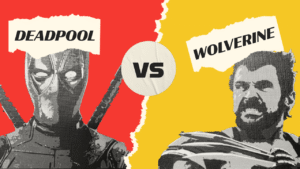
The video opens with SLVRBCK TROOP showing off two crisp, multi‑layered stencils he just laser‑cut: one featuring Wolverine, the adamantium‑clawed mutant, and the other featuring Deadpool, the wise‑cracking mercenary. He explains that the stencils were designed in Adobe Photoshop, refined in Adobe Illustrator and exported to LightBurn for cutting. He’s using the Creality Falcon 2 22 W laser engraver. The video’s voice‑over details his LightBurn settings, the cutting process and various laser‑engraver safety notes. We watch the blue‑laser diode slice through the material and produce the intricate shapes of Wolverine’s cowl, claws and muscular silhouette. When the cutting is complete, SLVRBCK TROOP peels away the negative spaces to reveal the finished stencil.
Next, he sprays the Wolverine stencil onto a canvas using multiple colors. The dark outlines of Wolverine’s costume and claws contrast sharply with the background, and subtle shading emerges from the layering of different spray‑paint hues. He shows a “sneak peek” of the Deadpool stencil, hinting at a future painting project, and invites viewers to debate who the best superhero is in the comments. Throughout, the creator encourages viewers to check out his website and Amazon storefront for gear lists, and he notes that the stencil files are available for download via Google Drive.
Key take‑aways from the description
The description of the video lists several important tools and resources:
Laser cutter: A Creality Falcon 2 22 W laser engraver is used to cut the stencils. TechWalls notes that the Falcon 2’s 22‑watt diode laser delivers high power and speed—up to 25,000 mm/min—thanks to FAC spot‑compression technology . This speed allows users to be “twice as productive,” and the powerful beam can even engrave stainless steel in full color by causing the metal to oxidize at different temperatures . Design software: The creator relies on LightBurn, Adobe Photoshop and Adobe Illustrator. LightBurn is a comprehensive laser‑engraving software that supports importing vector formats (SVG, AI, DXF) and raster images (PNG, BMP). It features a built‑in editor that lets users create and edit vector shapes, and it offers real‑time control of laser power, speed, number of passes, brightness and contrast . LightBurn also communicates directly with controllers like Ruida, Trocen, TopWisdom and G‑code systems and runs on Windows, macOS and Linux with a 30‑day full‑feature trial . Stencil files: Free downloadable files are provided so that viewers can cut the same stencils. These files were likely created in Illustrator and exported as vector paths. Spray painting: The video demonstrates spray‑painting through the laser‑cut stencil to produce the finished artwork. Spray‑paint stencilling involves applying pigment through an intermediate object with holes (the stencil), allowing the paint to reach only designated parts of the surface . The key advantage of stencils is that they can be reused to reproduce the design quickly . Multiple layers or colors can be created by using separate stencils for each layer .
Having established the video’s context, let’s take a deep dive into each component of the project.
Part 1 – Understanding the technology: Creality Falcon 2 22 W laser engraver
Laser engraving has evolved rapidly over the past decade. Diode lasers offer consumer‑level affordability and surprisingly high power. Here’s a breakdown of what makes the Creality Falcon 2 22 W notable.
22‑watt power and 25 000 mm/min speed
According to a TechWalls review, the Creality Falcon 2 22 W stands out because it combines a 22‑watt diode laser with advanced FAC (Fast Axis Collimation) spot‑compression technology. This combination yields a maximum engraving speed of 25 000 mm/min . In practice, that means users can cut or engrave designs twice as quickly as with typical consumer lasers. The high power also allows the machine to cut through materials like basswood or acrylic in a single pass and to etch metals.
Color engraving on metal
One of the most eye‑catching capabilities of the Falcon 2 is its ability to create colored engravings on stainless steel. The TechWalls article explains that when the laser heats the surface of stainless steel, physical reactions produce a range of colors . By controlling the laser’s speed, power and focus, users can induce blues, reds and golds—essentially “painting” on steel without additional pigment. This is not relevant to SLVRBCK TROOP’s Wolverine stencil (which is cut from non‑metal), but it shows how powerful the machine is.
Ease of assembly and use
A recurring theme in user reviews is the Falcon 2’s simple setup. TechWalls reports that the device arrives mostly pre‑assembled and can be put together in three steps, enabling users to start engraving within 6–8 minutes . The machine’s integrated air‑assist improves cutting quality by blowing away debris and cooling the material. Built‑in safety sensors monitor airflow and pause the machine if issues are detected.
Laser‑cut stencil advantages
Laser cutting offers numerous benefits over other stencil‑manufacturing methods. An article from LPKF (a laser‑manufacturing company) notes that laser processing provides outstanding precision and consistent quality with smooth walls and low edge roughness . It also ensures high repeatability and virtually wear‑free processing, allowing stencils to be produced at a consistent quality level . These advantages make laser‑cut stencils ideal for detailed artwork like the Wolverine and Deadpool designs. In addition, lasers produce stencils without physical contact, which helps preserve delicate details.
Considerations for makers
If you’re considering a diode laser like the Falcon 2, remember the following:
Safety: High‑power lasers can cause burns or eye injury. Always wear appropriate laser‑safety goggles, keep reflective materials away, and use proper ventilation. Material selection: Choose materials suitable for laser cutting. Thin plywood, MDF, acrylic and cardstock work well. Avoid PVC, vinyl or unknown plastics, which can release toxic fumes when cut. Software: Use design software that exports vector paths (SVG or DXF) and a laser‑control application like LightBurn for precise control.
Part 2 – Design workflow: From concept to laser‑cut stencil
SLVRBCK TROOP’s video makes stencil creation look simple. In reality, it requires thoughtful design and file preparation. Here’s an overview of the workflow.
Choosing a subject – why Wolverine and Deadpool?
The video pits two iconic Marvel characters against each other—Wolverine and Deadpool—and invites viewers to argue about which is better. Both characters share Canadian roots, regenerative healing factors and connections to the Weapon X program, but they have distinct personalities and fanbases. A brief look at each:
Wolverine: First appearing in The Incredible Hulk #180 (1974) , Wolverine (James Howlett/Logan) is an antiheroic member of the X‑Men. He possesses advanced self‑healing abilities, a long lifespan, animal‑keen senses and retractable claws made of the fictional metal adamantium . His skeleton is reinforced with adamantium through the Weapon X program, making him nearly indestructible . He is often portrayed as a gruff loner struggling with his feral instincts . Wolverine became a breakout character and has appeared in comics, animated series, video games and films; actor Hugh Jackman popularized him in movies . Deadpool: Created by Fabian Nicieza and Rob Liefeld, Deadpool first appeared in New Mutants #98 (1990) . Initially a supervillain, he evolved into an antihero. Deadpool is the alter ego of Wade Wilson, a disfigured Canadian mercenary with a superhuman regenerative healing factor . He is known for breaking the fourth wall, constant wise‑cracking, and a penchant for pop‑culture references . The character was originally a parody of DC’s Deathstroke (Slade Wilson) , and his popularity quickly earned him solo comics and films.
Creating the artwork
The design process typically involves several stages:
Source images: The creator selects high‑contrast images or drawings of Wolverine and Deadpool. Comic‑book covers and movie stills are good starting points. Editing in Photoshop: Using Adobe Photoshop, the artist converts the image to grayscale, increases contrast and simplifies details. This step makes it easier to separate the image into layers and to cut out shapes. Vectorizing in Illustrator: The edited image is imported into Adobe Illustrator, where it is converted into vector paths. Adobe Illustrator is a vector graphics editor developed by Adobe; it was first released in 1987 and is currently on its 30th generation (Illustrator 2026) . Illustrator uses Bézier curves to create infinitely scalable graphics . It is often used for logos and lettering, making it ideal for creating crisp stencil outlines . Preparing the stencil layers: In Illustrator, the artist separates the image into different color layers. Multi‑layer stencils enable shading and gradients, with each layer corresponding to a specific color. The Stencil article notes that multiple layers are used to produce multi‑colored images . Bridges and islands must be added to ensure the stencil stays intact when cut . Exporting to LightBurn: The finished vector file is exported as SVG or DXF and imported into LightBurn. LightBurn’s editor allows the artist to assign different cutting settings (e.g., speed, power) to each layer and to create registration marks for alignment. LightBurn communicates directly with the laser controller and lets users adjust speed, power and passes for each layer .
Cutting the stencil
With the file prepared, the laser‑cutting process can begin:
Material: Artists often choose thin plywood, MDF (medium‑density fiberboard), cardstock or Mylar for stencils. The choice depends on the desired durability and flexibility. Mylar is reusable and durable but more expensive; cardstock is cheap but short‑lived. Air assist and focus: The Falcon 2’s integrated air‑assist helps blow away smoke and debris, improving edge quality. Focusing the laser at the correct height ensures clean cuts. Test cuts: Running test squares with different speeds and powers helps dial in the settings before cutting the full design. Cutting: Laser cutting is precise and fast. LPKF notes that laser‑cut stencils have smooth walls and low edge roughness, leading to high quality . The repeatability of laser processing makes it easy to produce multiple identical stencils .
Once the cut finishes, the negative pieces are removed, leaving a crisp stencil ready for painting.
Part 3 – Spray‑paint stencil art and techniques
After cutting the Wolverine stencil, SLVRBCK TROOP transitions to spray‑painting the design. Spray‑paint stenciling is both accessible and expressive. Here’s what you need to know.
Stencil basics
A stencil is an intermediate object with cut‑out holes. When pigment is applied through the stencil, the pigment only reaches the parts of the surface beneath the holes . The same word “stencil” refers to both the object and the resulting image . Stencils are often made from paper, plastic, wood or metal . They are reusable, allowing repeated production of the same design . Artists add bridges—narrow connecting sections—to hold stencil islands in place and ensure the stencil doesn’t fall apart .
History and cultural significance
Stencilling is ancient. Prehistoric cave artists blew pigment around their hands to create hand stencils more than 35,000 years ago . The technique evolved into cloth dyeing (e.g., Japanese katazome during the Edo period) and later became popular in book illustration and playing‑card printing . In modern times, stencils are used for industrial labeling, military markings and, importantly, street art. Stencil graffiti allows artists to produce complex images quickly and repeatedly, which is valuable when working in public spaces where graffiti is illegal or risky . Multi‑layered stencils with different shades of gray can create highly detailed images .
Spray‑painting tips
Surface preparation: Use a smooth surface like canvas, wood or a wall. Clean it of dust and oils. Securing the stencil: Tape or spray‑adhesive keeps the stencil flat against the surface. Gaps cause overspray and fuzzy edges. Color layering: For multi‑color art, work from light to dark. Spray the lightest color first, then let it dry before adding darker colors. Use separate stencils or masks for each color. Distance and angle: Hold the spray can 6–12 inches from the surface. Spraying at a consistent distance prevents drips and uneven coverage. Vary the angle slightly to reach all parts of the design. Drying time: Allow sufficient drying time between layers to prevent smearing. Cleanup and reuse: After painting, carefully remove the stencil and clean it if you plan to reuse it. For Mylar or plastic stencils, wipe away paint with mild solvent.
Multi‑layer stencils
Multi‑layer stencils enable shading and gradients. Each layer represents different colors or tonal values. For example, a four‑layer stencil might have one layer for highlights, two for midtones and one for shadows. Aligning the layers accurately is crucial. Registration marks—small holes or shapes cut in the corners—help align each stencil over the artwork.
Part 4 – Spotlight on Wolverine and Deadpool
Wolverine: The feral antihero
Wolverine (James Howlett/Logan) is arguably the most iconic member of the X‑Men. Created by writer Len Wein and Marvel art director John Romita Sr., he debuted in The Incredible Hulk #180 in 1974 . Key characteristics include:
Regenerative healing factor: Wolverine’s most famous power is his rapid healing. He can recover from wounds, regrow lost tissue and survive otherwise fatal injuries. This ability grants him a long lifespan . Adamantium skeleton and claws: Through the Weapon X program, Wolverine’s skeleton was bonded with adamantium, an indestructible fictional metal, making his bones unbreakable . His retractable claws, originally bone, were also coated with adamantium and can cut through nearly anything . Animal senses and berserker rage: Wolverine possesses animal‑keen senses (sight, smell, hearing) and can enter a feral “berserker rage,” during which he becomes more violent and aggressive . Personality: A gruff loner, Wolverine often grapples with his humanity versus his animal instincts. He has acted as a mentor to younger mutants like Kitty Pryde and Jubilee . Cultural impact: Wolverine became a breakout character and one of Marvel’s most popular figures . He has headlined numerous comic series, video games and films; actor Hugh Jackman’s portrayal in the X‑Men film series and the upcoming Deadpool & Wolverine (2024) further cement his status .
Deadpool: The Merc with a Mouth
Deadpool (Wade Wilson) debuted in New Mutants #98 in 1990 and quickly became a fan favorite . Key traits include:
Regenerative healing: Like Wolverine, Deadpool’s body heals rapidly from injuries . This healing factor was artificially granted through the Weapon X program, partly based on Wolverine’s genetics . However, it also contributes to his mental instability. Fourth‑wall breaking: Deadpool frequently acknowledges that he is in a comic or film, joking with readers and referencing pop culture . This meta‑humor sets him apart from most superheroes. Parody origins: The character was created as a parody of DC’s Deathstroke. Writer Fabian Nicieza even named him Wade Wilson as a joke referencing Deathstroke’s real name, Slade Wilson . Antihero status: Deadpool started as a supervillain but evolved into an antihero. He’s a mercenary and assassin with a moral compass that wobbles between selfishness and heroism. His constant joking and violence have made him a cult favorite.
Both Wolverine and Deadpool connect through their shared Weapon X origins and Canadian heritage, yet their personalities and narrative functions differ drastically. Wolverine’s brooding seriousness contrasts with Deadpool’s chaotic humor. Bringing them together in stencil art allows fans to celebrate both characters while engaging in lighthearted debates.
Part 5 – Diving into the software: LightBurn, Photoshop and Illustrator
The success of SLVRBCK TROOP’s stencil project hinges on powerful software. Here’s how each tool contributes.
LightBurn: All‑in‑one laser control
LightBurn is a layout, editing and laser‑control software for engravers and cutters. It allows users to import vector files like SVG, AI and DXF and image files like PNG and BMP. It features a built‑in editor to create, arrange and adjust vector shapes . Real‑time controls let users adjust laser power, speed, number of passes and dithering modes . LightBurn communicates directly with a wide range of controllers—including Ruida, Trocen, TopWisdom and G‑code systems—eliminating the need for intermediate software . It runs on Windows, macOS and Linux and offers a 30‑day full‑feature trial . By assigning different settings to each color layer, users can fine‑tune the laser’s behavior for cutting, engraving or scoring.
Adobe Photoshop: Image editing and color separation
Photoshop is a raster graphics editor used primarily for photo manipulation. In stencil creation, it helps convert a photo or drawing into high‑contrast black‑and‑white. Artists can apply filters to reduce detail, posterize colors, and paint over unwanted elements. Tools like threshold adjustment and the Posterize filter help isolate distinct tone regions. Once simplified, the image is exported to Illustrator for vectorization.
Adobe Illustrator: Vectorization and layering
As a vector graphics editor, Illustrator is ideal for converting raster images into scalable paths. It was developed by Adobe in 1985 and uses Bézier curves to render infinitely scalable graphics . Illustrator is typically used for typography and logo design , but its precise control over paths makes it perfect for stencil design. The Image Trace feature automatically converts a bitmap into vectors. Artists refine the paths, add bridges and split the design into layers for multi‑color stencils. Illustrator exports the final file as SVG or DXF for LightBurn.
Part 6 – Step‑by‑step guide to recreating the Wolverine stencil project
Want to replicate SLVRBCK TROOP’s Wolverine artwork? Here’s a detailed guide.
Materials and tools
Laser engraver: Creality Falcon 2 22 W or any diode laser with similar power. Computer and software: A system running Photoshop, Illustrator and LightBurn (or equivalent). LightBurn offers a free 30‑day trial . Stencil material: 0.5–2 mm plywood, MDF, acrylic or Mylar. Spray paints: Multiple colors of acrylic spray paint. Choose contrasting colors for dramatic effects. Protective gear: Laser‑safety goggles, dust mask, gloves. Painter’s tape or spray adhesive to secure stencils.
Workflow
Select or design your image: Use a high‑contrast drawing of Wolverine or another subject. Prepare the image in Photoshop: Convert to grayscale. Adjust Levels or Curves to increase contrast. Use Threshold to create a purely black‑and‑white version. Clean up stray pixels with the brush or eraser tools. Vectorize in Illustrator: Import the edited image. Use Image Trace with settings like Black and White or Shades of Gray to convert it to vector paths. Expand the image to editable paths. Add bridges to connect islands (e.g., around Wolverine’s eye shapes). Duplicate the design into layers if you want multiple colors. Export to LightBurn: Save each color layer as a separate SVG file. Open the files in LightBurn. Use LightBurn’s editor to position the layers and add registration marks. Assign cutting speeds and power settings. Start with moderate settings (e.g., 300 mm/min at 60 % power) and adjust based on test cuts. Cut the stencil: Place your material on the laser bed and ensure it’s level. Turn on air assist. Run the job. Monitor the laser and be ready to pause if something goes wrong. Remove the finished stencil and clean out the cut pieces. Spray‑paint the artwork: Place the stencil on your surface. Secure it with tape or spray adhesive. Spray the first color evenly. Wait for it to dry. If using multiple layers, position the next stencil using registration marks and apply the next color. When finished, carefully remove the stencil. Clean the stencil if you plan to reuse it. Seal the art (optional): Apply a clear coat to protect the paint.
Part 7 – Beyond the video: Applications and inspiration
DIY gifts and decor
Laser‑cut stencils open up myriad creative possibilities. For example:
Custom posters: Create multi‑layered portraits of friends, family or pets. Use spray paint or acrylics to add color. Street‑art style canvases: Emulate the stencil graffiti made famous by artists like Banksy. Because stencils are reusable, you can reproduce your design across multiple surfaces. Home decor: Apply stencils to walls, furniture or fabric. Use fabric paint on T‑shirts or tote bags. Use chalk paint for rustic wooden signs. Mixed media: Combine stencilling with decoupage, resin or 3D prints.
Educational projects
Teachers and parents can use laser‑cut stencils in educational settings:
Art lessons: Teach students about positive and negative space, layering, color theory and the history of stencil art—from prehistoric handprints to modern street art . History of comics: Integrate research about Wolverine and Deadpool. Discuss how these characters reflect changes in society’s view of masculinity, war and heroism . STEM lessons: Demonstrate how computer‑aided design (CAD) software translates digital files into physical cuts. Discuss laser physics, diode technology and safety.
Maker business opportunities
For entrepreneurs, laser‑cut stencils offer opportunities:
Custom art commissions: Sell personalized stencil art featuring clients’ favorite characters or portraits. Stencils for sale: Sell digital files or physical stencils on platforms like Etsy. Since stencils are reusable, you can market them to other artists. Workshops: Host community workshops teaching people how to design and cut their own stencils.
Part 8 – Reflections on fandom, technology and creativity
SLVRBCK TROOP’s video may be short, but it encapsulates the intersection of technology, artistry and fandom. A few reflections:
Empowerment through tools: Twenty years ago, laser cutting was confined to industrial workshops. Today, desktop diode lasers like the Creality Falcon 2 22 W bring powerful manufacturing capabilities into home studios. This democratization of technology lets hobbyists translate digital art into physical objects with professional quality. The Falcon 2’s high power and speed (25 000 mm/min) enable rapid production , while LightBurn’s intuitive software lowers the barrier to entry . Fusion of analog and digital: Stencil art bridges digital design and analog expression. The design begins in vector software, moves through a laser cutter and ends with messy, hands‑on spray painting. The tactile act of spray‑painting adds unpredictability and human touch to an otherwise precise process. Fandom as creative fuel: Choosing Wolverine and Deadpool taps into decades of comic‑book lore. Wolverine’s feral resilience and Deadpool’s anarchic humor offer contrasting archetypes. The debate over which is “best” invites fans to engage. Knowing the characters’ histories—Wolverine’s Weapon X origins and Deadpool’s parody roots —deepens appreciation for the artwork. Community and accessibility: SLVRBCK TROOP shares his process, settings and files for free, encouraging viewers to try the project themselves. This reflects the open‑source ethos of maker communities. When creators share knowledge, they lower barriers and inspire novices to experiment. Sustainability considerations: Laser cutting and spray painting involve energy consumption and potential emissions. Users should choose environmentally safer spray paints and ventilate properly. Laser cutting of materials like PVC should be avoided due to toxic fumes.
About the Channel and Creator
The SLVRBCK TROOP YouTube channel is part of a growing ecosystem of maker‑oriented creators who share their experiments, successes and failures in the workshop. Although the channel’s name nods to the strength of a silverback gorilla, its content is decidedly human: family members collaborate on projects ranging from woodworking and laser cutting to product reviews, camping, hiking and general home improvement. Videos often feature a light‑hearted tone, a focus on practical tips and a willingness to acknowledge mistakes. Viewers are encouraged to interact, ask questions and even download project files. In the Wolverine and Deadpool stencil video, the creator not only shows the finished pieces but also offers the design files via Google Drive and invites viewers to weigh in on which character they prefer. This open approach aligns with the maker movement’s ethos of sharing and collaboration, where knowledge is freely exchanged and communities form around common interests.
The channel also serves as a kind of video diary for personal adventures. Past uploads include family hikes, camping trips, gadget reviews and glimpses of everyday life. This eclectic mix helps build parasocial connections between the creator and the audience; viewers return not only for technical tutorials but also to see familiar faces and to follow along with projects over time. In the context of the stencil project, this personal backdrop enhances the narrative: instead of a faceless tutorial, we are watching a hobbyist experiment with new tools, express his love for comic‑book characters, and challenge his audience to join the debate. The combination of authentic personality and technical competence makes the content approachable and inspires viewers to try their own creative experiments.
Anatomy of the Creality Falcon 2 22 W Laser Engraver
The star tool in SLVRBCK TROOP’s video is the Creality Falcon 2 22 W laser engraver. This machine represents a new generation of desktop diode lasers that offer significant cutting power and speed previously reserved for large industrial units. According to a review on TechWalls, the Falcon 2’s 22 watt diode is capable of engraving at speeds up to 25 000 mm/min , allowing users to produce intricate cuts quickly and efficiently. The review notes that this high speed results from FAC spot compression technology, which combines multiple laser beams into a smaller, denser spot for greater power density . The same article praises the machine’s ability to create colored engravings on stainless steel, achieved by varying the laser’s heat to oxidize the metal surface and produce a palette of hues .
Beyond raw power, the Falcon 2 emphasizes ease of use. TechWalls highlights that the machine arrives mostly assembled, requiring only three simple steps to set up . This plug‑and‑play design reduces the intimidation factor for beginners; you don’t have to square frames, wire control boards or calibrate optics before making your first cut. The review further mentions that the machine was “the strongest laser tested” on one reviewer’s channel , underscoring the Falcon 2’s competitive performance among consumer‑grade models. Coupled with the speed and power benefits, the integrated design fosters an out‑of‑box experience that can have you cutting stencils within minutes of unboxing.
Another article from 3DPrinting.com provides more context on the Falcon 2 range. The 22 W version sits between the 12 W and 40 W models, balancing affordability with power. It features an integrated air‑assist system that helps remove smoke and debris from the cutting area while protecting the lens . The machine also incorporates five safety features and a pre‑assembled frame, making it suitable for novices, educators and small businesses . Most impressively, the article notes that the 22 W engraver can carve through 15 mm of wood in a single pass and still achieve an engraving speed of 25 000 mm/min . These specifications highlight why SLVRBCK TROOP chose this model for his superhero stencils: it provides enough power to cut through thick plywood quickly while still maintaining fine detail for intricate designs.
Integrated air assist and safety systems
One of the notable innovations in the Falcon 2 line is the integrated air‑assist. Traditional laser cutters often require an external air pump to blow debris away from the cutting area, but the Falcon 2’s built‑in system simplifies setup and keeps the workspace clean. Air assist not only improves cut quality by reducing charring but also extends the life of the laser lens by preventing smoke deposits. Combined with safety features like flame detection, tilt sensors, and emergency stop switches (as reported in marketing materials and reviews), the Falcon 2 aims to make high‑power laser cutting accessible without sacrificing safety. The 3DPrinting.com article notes that the model’s five safety features and pre‑assembled frame contribute to a “seamless experience” for users . For hobbyists working in home workshops, these protections are essential.
The role of FAC spot compression
TechWalls attributes the Falcon 2’s performance to FAC spot compression technology . FAC stands for “Fast Axis Collimation,” a method that uses cylindrical lenses or mirrors to compress the laser beam’s divergence along one axis, creating a smaller and more focused spot. By combining multiple diodes and compressing their beams, manufacturers can achieve higher power densities than would be possible with a single diode. This not only increases cutting power but also sharpens the engraving resolution, allowing fine details like facial features, text and textures to be rendered cleanly. In practice, FAC technology means that intricate elements such as Wolverine’s whisker lines or the subtle contours of Deadpool’s mask can be faithfully reproduced without ragged edges or burn marks.
Color engraving capability
One of the Falcon 2’s most intriguing features is its ability to create colored engravings on stainless steel . When the laser heats the metal surface, different temperatures induce oxide layers of varying thickness, which reflect light at different wavelengths and therefore appear as different colors. This phenomenon, often called laser annealing, allows artists to produce rainbows of hues on otherwise monochrome metal surfaces. In the context of the stencil project, this capability hints at future possibilities: imagine layering a stainless‑steel stencil over a painting and then using the laser to etch color gradients directly onto the metal. Such techniques expand the palette for makers and blur the line between engraving and painting.
Productivity and ease of assembly
Speed and convenience are crucial when turning digital designs into physical stencils. The ability to cut multiple copies quickly encourages experimentation and iterative design. TechWalls points out that the Falcon 2’s combination of power and speed makes it twice as productive as many competitor devices . Coupled with the machine’s three‑step assembly , users can go from unboxing to productive cutting in under ten minutes. For content creators like SLVRBCK TROOP, these efficiencies translate directly into more engaging videos and rapid turnaround for viewers who want to replicate the project.
Laser Science for Makers
Understanding how a laser engraver works can demystify the process and enable more effective use of the technology. At its core, a laser is a device that produces a coherent beam of light through stimulated emission. In a diode laser, electrons in a semiconductor junction are excited by an electric current; when they return to a lower energy state, they emit photons. Mirrors within the laser module bounce these photons back and forth, stimulating more emissions and producing a focused, monochromatic beam. Consumer engravers like the Falcon 2 typically combine multiple diode modules and use optical lenses to compress the beam spot (the FAC technology discussed above) . The result is a high‑intensity light beam capable of cutting, engraving or burning a variety of materials.
Diode versus CO₂ and fiber lasers
In the world of laser cutting, diode, CO₂ and fiber lasers are the three most common types. Diode lasers, like those in the Falcon 2, are compact, energy efficient and cost‑effective. They excel at cutting thin materials such as plywood, acrylic, leather and paper, and they offer fine resolution because of their smaller spot sizes. However, their power is generally lower than CO₂ lasers, which use electrically excited gas mixtures and can cut thicker materials more quickly. Fiber lasers, meanwhile, employ rare‑earth‑doped optical fibers and produce even more intense beams suitable for cutting metals. Each type has its place: CO₂ machines dominate industrial fabrication, fiber lasers are used for metal marking and high‑speed cutting, and diode lasers provide an affordable entry point for hobbyists. The Falcon 2’s 22 W output pushes the boundaries of what diode machines can do, bridging the gap between entry‑level craft tools and professional equipment.
Interaction with materials
When a laser beam interacts with a material, its energy is absorbed by the surface molecules, causing them to heat, melt or vaporize. In wood and paper, the laser burns the fibers and creates a charred edge. In acrylic, it melts a clean, polished cut line. On metals, high temperatures can cause oxidation or ablation, depending on the power and wavelength. Understanding these interactions helps in choosing the right materials for a project and in adjusting settings like power, speed and air assist for optimal results. For instance, cutting 15 mm plywood in a single pass with the Falcon 2 requires near‑maximum power and slower speed , whereas engraving a fine pattern on paper can be done at lower power and higher speed to avoid scorching.
Safety considerations when working with lasers
Lasers are powerful tools, and safe operation is paramount. Always wear appropriate laser safety glasses rated for the wavelength of your machine (in the case of the Falcon 2, around 450 nm for blue diode lasers). Use the machine in a well‑ventilated area or with a fume extraction system; burning materials produces smoke and potentially harmful compounds. Avoid cutting materials that release toxic fumes, such as PVC, which emits hydrochloric acid and dioxins when heated. Never leave the machine unattended while cutting, and ensure that safety features like flame detectors and tilt sensors are functional. The Falcon 2’s built‑in safety systems and air assist help mitigate some risks, but operator vigilance remains critical .
Designing with LightBurn and Adobe Tools
The digital design workflow that SLVRBCK TROOP describes involves Adobe Photoshop, Adobe Illustrator and LightBurn. Each tool plays a distinct role in bringing a creative concept from imagination to physical form.
Adobe Photoshop and Illustrator
Photoshop is a raster graphics editor used for editing pixel‑based images. It’s ideal for creating concept art, manipulating photos, adjusting colors and adding textures. In the context of stencil design, Photoshop can help isolate a subject from a background and adjust contrast so that the image will read well when cut. Illustrator, on the other hand, is a vector graphics editor developed by Adobe in 1985 for the Apple Macintosh . It uses Bézier curves to describe shapes, allowing artwork to be scaled infinitely without loss of quality . Illustrator is particularly suited for preparing designs for laser cutting, as laser cutters follow vector paths. In the video, the creator exports his designs from Photoshop to Illustrator, refines the vector shapes and then sends them to LightBurn.
LightBurn features and workflow
LightBurn serves as the bridge between digital art and the physical cutting process. The Opt Lasers guide describes LightBurn as an all‑in‑one software that allows users to import vector files like SVG, AI and DXF, as well as raster formats like PNG and BMP . It includes a built‑in vector editor that lets you create, position and adjust shapes directly inside the software . Real‑time controls permit fine adjustment of laser power, speed and passes, and there are options for dithering and brightness/contrast adjustments when engraving images . LightBurn communicates directly with common controllers such as Ruida, Trocen, TopWisdom and G‑code systems , eliminating the need for intermediate programs. It works across Windows, macOS and Linux and offers a 30‑day full‑feature trial .
The software is available in Core and Pro versions, priced around $120 and $199 respectively . The Core (G‑code) version supports diode lasers and other machines that use open‑source controllers, while the Pro version adds support for DSP (digital signal processor) and galvo systems . Both licenses are perpetual, and optional annual updates are offered at discounted rates . Choosing the right license ensures compatibility with your hardware and gives access to advanced features such as camera alignment, shape welding and multi‑mode cutting. LightBurn also includes a material library that stores power and speed settings for different materials , making it easy to reproduce results across projects.
Device detection and G‑code generation
When you connect a laser cutter, LightBurn identifies the controller rather than the laser head itself . This means that if your machine uses a GRBL controller, LightBurn treats it as a GRBL device even if you upgrade the laser module. If your machine isn’t automatically detected, you can manually configure its settings within LightBurn and even generate G‑code files for later use . This flexibility allows the software to serve as a universal CAM (computer‑aided manufacturing) tool for many DIY and custom‑built laser systems. For SLVRBCK TROOP, using LightBurn means he can adjust cut layers, assign different speeds to different parts of the design and preview the tool path before starting the laser, ensuring that his Wolverine and Deadpool stencils cut cleanly on the first try.
Materials and Stencil Construction
Choosing the right material for your stencil affects both the cutting process and the durability of the final tool. The Xometry guide on laser‑cut stencils lists several popular materials, each with its own advantages :
Cardboard and cardstock: These inexpensive materials are ideal for single‑use or temporary stencils . They are easy to cut and perfect for quick prototypes or limited decorative projects. However, they wear out quickly and may absorb spray paint, leading to bleeding and distortion after repeated use. Mylar®: A durable, flexible polyester film that is solvent‑resistant and easy to clean . Mylar stencils are reusable and widely used in signage, crafts and industrial marking. Their resilience makes them well suited for multi‑pass projects and for use with aggressive paints or dyes. Thin wood or veneer: Plywood or veneer sheets can be laser‑cut to create rigid stencils . Wood stencils are sturdier but also thicker, which can affect the crispness of the edges if the paint is applied at a shallow angle. They are often used in decorative contexts where sturdiness is more important than flexibility. Plastic films: Polyesters and polypropylenes are lightweight and versatile, offering good resistance to wear and environmental exposure . They are common in construction, signage and industrial applications where the stencil must withstand weather and repeated handling. Self‑adhesive vinyl: These stencils temporarily adhere to the target surface, allowing clean paint edges and preventing the stencil from shifting . Vinyl is particularly useful for curved surfaces or for intricate designs where tiny elements might otherwise lift during painting.
Bridges and islands
When cutting stencils, it’s essential to preserve internal shapes, or islands, by connecting them with narrow bridges. The Wikipedia entry on stenciling explains that to be reusable, a stencil must remain intact after a design is produced, which requires connecting islands to the rest of the stencil using bridges . Without bridges, letters like “O” or “P” would lose their inner spaces, and facial features like eyes or mouths would fall out. Bridge design becomes especially important in multi‑layer stencils, where small shapes must align precisely across layers.
Designing Multi‑Layer Stencils
One of the key advantages of laser‑cut stencils is the ability to create multi‑layer designs. The Xometry guide highlights that stencils can be reused to make color variations and multi‑color images by cutting multiple layers . Each layer corresponds to a different color or shading. For example, the top layer might define the darkest shadows, the second layer might define midtones and the third layer might add highlights. When spray‑painted sequentially, these layers blend to produce depth and dimensionality.
Designing multi‑layer stencils involves several steps:
Break down the image: Start with a high‑contrast image of your subject and separate it into discrete regions of light, medium and dark tones. Software like Photoshop can assist by converting images to grayscale and thresholding them at different levels. Alternatively, you can trace the image in Illustrator, manually assigning color regions. Create separate vector files: Each color or tone requires its own vector design. Use Illustrator or LightBurn’s built‑in editor to ensure that bridges are added where needed and that each layer can align with the others. According to the Xometry guide, vector design is critical; tools like LightBurn and RDWorks include features to automatically insert bridges for stencil fonts . Label and register: Add registration marks to each layer so that they can be aligned precisely during painting. These marks are small shapes cut into each stencil that help you line up the layers on your canvas or material. Once aligned, tape or weigh down the stencil to prevent shifting. Cut and test: Perform a test cut on scrap material to verify that the bridges, openings and registration marks function correctly . Adjust the design as needed, then proceed to the final cut. Paint sequentially: Begin with the background or lightest color and work toward the darkest. Allow each layer to dry before applying the next to prevent smudging. The ability to reuse stencils means you can experiment with different color schemes by varying the order or palette.
Multi‑layer stencils are popular in street art, craft projects and commercial branding because they offer detail and shading unattainable with single‑layer designs. They also provide a high degree of repeatability, one of the core advantages of laser‑cut stencils .
Spray Paint Techniques for Stencil Art
Applying spray paint may seem straightforward—just point and spray—but technique makes a world of difference when using stencils. The goal is to achieve crisp edges without bleeding under the stencil, while building up layers for depth and texture.
Preparing the stencil
Clean stencils produce clean designs. Wipe down reusable stencils with a cloth to remove dust, oils or dried paint. For self‑adhesive vinyl stencils, ensure that the adhesive is intact and free of debris. Lay the stencil flat on your work surface and, if needed, secure the edges with masking tape or low‑tack spray adhesive. Some artists prefer repositionable spray adhesive applied lightly to the back of the stencil; this tacks the stencil down and prevents paint from seeping underneath.
Distance and spray control
Hold the spray can 10 to 15 inches (about 25 to 38 cm) away from the surface. Start spraying off to the side of the stencil and sweep across in a steady motion, releasing the nozzle just after passing the opposite edge. This technique prevents paint build‑up and reduces drips. Short, controlled bursts are preferable to long blasts; they allow you to build color gradually and keep edges sharp. When working with multi‑layer stencils, let each layer dry completely—spray paint can dry in minutes in warm environments, but humidity can slow the process.
Layering and blending
For multi‑color stencils, apply lightest colors first. Spray a base coat with even coverage, then overlay subsequent layers. You can create soft transitions by partially lifting the stencil or by spraying through mesh for a textured effect. Experiment with overlapping colours—because the paint is transparent when thinly applied, layering can result in secondary hues. For example, spraying yellow over blue can produce green in the overlapping areas. Fine details like highlights may require very light passes or even hand painting with brushes or markers.
Preventing bleed
Bleeding occurs when paint seeps under the stencil edges. To minimize this, ensure the stencil sits flush against the surface. Use weights or tape to press down open areas, particularly around small islands and bridges. Apply paint in several light coats rather than one heavy one; heavy coats are more likely to seep. Removing the stencil while the paint is still tacky can also reduce the risk of tearing or smudging. For wood surfaces, sealing the wood with clear coat before stenciling can help prevent paint from wicking along the grain.
Finishing touches
Once the paint is dry, remove the stencil carefully to avoid ripping delicate bridges or islands. If stray paint has bled or overspray is present, you can tidy edges with a fine brush and matching background paint. For added durability, protect the finished artwork with a clear varnish. In SLVRBCK TROOP’s video, the Wolverine spray painting appears crisp and vivid, suggesting that he used proper distance, light coats and perhaps some adhesive to keep the stencil secure.
History and Culture of Stencil Art
Stenciling is far from a modern invention. Archaeologists have found prehistoric hand stencils in caves dating back over 35 000 years . In these early works, artists placed their hands on cave walls and blew pigment through hollow bones, leaving negative impressions that survive millennia later. This ancient technique demonstrates the enduring appeal of using an object as an intermediate template to create images.
Stencils across cultures and eras
In Japan, stenciling reached remarkable sophistication during the Edo period through techniques like Katazome, which involved applying rice paste resist through intricately cut stencils to dye silk fabrics . European artisans in the 15th century used stencils to color playing cards and woodcut prints , enabling faster and more consistent production than hand painting alone. The method remained popular for coloring book illustrations in 1920s France, especially in the pochoir technique , where stencils applied brilliant colors over collotype prints.
During the 20th century, stencils found official applications in the military and government for labeling equipment, vehicles and infrastructure . Individual letters, numbers and symbols could be arranged to quickly mark property without worrying about handwriting legibility or artistic skill. Stenciling thus bridged functional and artistic realms; the same technique used to mark crates and road signs also enabled elaborate art prints.
Stencil graffiti and street art
In more recent decades, stenciling became a hallmark of street art and graffiti. The ability to create quick, repeatable images made stencils ideal for artists working in public spaces where time might be limited or the work might be illegal. The Wikipedia article notes that stencil graffiti can be produced quickly and cheaply, making it attractive to political artists and activists . Groups like the British anarcho‑punk band Crass used stencils to spread anti‑war and anti‑consumerist messages across the London Underground in the late 1970s . Over time, the complexity of stencil graffiti increased, with artists creating multi‑layered stencils using different shades of grey to produce photorealistic images .
Today, artists such as Banksy, Blek le Rat, Shepard Fairey and Tavar Zawacki are known for their stencil work (although their biographies are beyond the scope of this article). Their art often combines witty social commentary with iconic imagery. Laser cutting has further expanded possibilities for stencil graffiti; digital designs can be translated into physical stencils with precision, allowing for intricate details and consistent reproduction across multiple locations.
Wolverine: Character Deep Dive
To appreciate the significance of the Wolverine stencil, it helps to understand the character’s rich history. Wolverine, whose real name is James Howlett, first appeared in The Incredible Hulk #180 in 1974 . He is best known as a member of the X‑Men and is recognized for his self‑healing abilities, extended lifespan, animal‑keen senses and retractable claws . His skeleton is laced with the fictional metal adamantium, the result of being forced into the Weapon X super‑soldier program . Wolverine’s gruff demeanor and propensity for berserker rages make him one of Marvel’s most complex anti‑heroes .
Relationships and story arcs
Within the X‑Men universe, Wolverine’s relationships illustrate both his humanity and his inner conflict. He mentors younger mutants like Kitty Pryde and Jubilee, and forms deep friendships with teammates such as Nightcrawler and Storm . He has a long‑running romantic tension with Jean Grey, which sometimes puts him at odds with Cyclops, Jean’s husband . Wolverine’s archenemy is Sabretooth, a fellow Weapon X participant who shares similar powers but embraces his feral nature .
Important storylines include the 1982 limited series co‑created by Frank Miller and Chris Claremont that solidified Wolverine’s catchphrase “I’m the best there is at what I do, but what I do best isn’t very nice” . Other notable arcs are “Weapon X” (1991), which delves into the horrors of the program that bonded adamantium to his skeleton, “Enemy of the State” (2004–2005), where Wolverine becomes a brainwashed assassin, and “Old Man Logan” (2008–2009), a dystopian future tale .
Popularity and cultural impact
Wolverine quickly became the breakout character of the X‑Men . His willingness to use lethal force and his brooding loner attitude resonated with readers, influencing a wave of darker antiheroes in post‑Vietnam War comics . Academics and psychologists have analyzed Wolverine’s mental health struggles and trauma, suggesting that his appeal lies partly in his attempts to reconcile humanity with animal instincts . The character expanded beyond comics, appearing in the 1992 X‑Men animated series and subsequently in video games and films . Actor Hugh Jackman has portrayed Wolverine in eleven films, from X‑Men (2000) to Deadpool & Wolverine (2024) , making the character a pop‑culture icon.
Deadpool: Character Deep Dive
Deadpool debuted in New Mutants #98 in 1990 . Created by writer Fabian Nicieza and artist Rob Liefeld, he began as a supervillain but evolved into an antihero . Deadpool is the alter ego of Wade Wilson, a Canadian mercenary who gains a regenerative healing factor similar to Wolverine’s after being subjected to an experiment . The character was initially conceived as a parody of DC’s Deathstroke (Slade Wilson) , which is why his name and backstory mirror that character’s.
Fourth‑wall breaks and humor
One of Deadpool’s most distinctive traits is his propensity to break the fourth wall—addressing the reader or audience directly and acknowledging that he is a fictional character . This meta‑humor, combined with incessant wisecracking and references to pop culture, sets Deadpool apart from other superheroes. The 2004 series Cable & Deadpool even has Deadpool joke about his own scarred appearance, comparing himself to an actor (“Ryan Renolds [sic] crossed with a Shar Pei”) . Ryan Reynolds, after reading the comics, campaigned to play Deadpool and eventually did so in the 2016 film Deadpool and its 2018 sequel .
Origin and influences
Rob Liefeld has openly discussed how he wanted to create his own versions of characters he admired, including Spider‑Man, Wolverine and the Teen Titans. He gave Deadpool the weapons and agility of Spider‑Man, combined with Wolverine’s regenerative abilities . Fabian Nicieza recognized the similarities to DC’s Deathstroke and jokingly named the character Wade Wilson to highlight the parody . Over time, Deadpool developed his own identity through humour, moral ambiguity and willingness to ally with heroes or villains as it suits his goals.
Publication and media adaptations
After his villainous debut, Deadpool starred in a 1993 miniseries, The Circle Chase, which was successful enough to spawn another mini and, by 1997, an ongoing series . Writers like Joe Kelly and Gail Simone embraced the character’s comedic potential, turning the series into an action comedy that satirized superhero tropes . Deadpool’s popularity has led to numerous guest appearances across Marvel titles and crossovers with other characters. The film adaptations—Deadpool (2016) and Deadpool 2 (2018), with a forthcoming crossover film Deadpool & Wolverine (2024)—cemented his status as a household name .
Wolverine vs Deadpool: A Comparative Analysis
At first glance, Wolverine and Deadpool share several traits: both are Canadian, both possess regenerative healing factors, and both were altered through clandestine programs (Weapon X for Wolverine and a Weapon X derivative for Deadpool) . Their differences, however, reveal why fans endlessly debate which character is superior—and why SLVRBCK TROOP chose them for his stencil art.
Personality and philosophy
Wolverine is often depicted as a brooding loner with a strict personal code. Despite his ferocity, he is deeply loyal to his friends and takes his role as mentor seriously. His moral compass is complex; he will kill when necessary but strives to protect innocents and stand against injustice. Deadpool, on the other hand, revels in chaos. He breaks the fourth wall, jokes incessantly and flip‑flops between hero and villain. Where Wolverine is driven by duty and trauma, Deadpool is propelled by self‑interest and a twisted sense of fun. This contrast makes them ideal foils. Readers who prefer stoic determination might favor Wolverine, while those who enjoy irreverent humour might choose Deadpool.
Powers and abilities
Both characters have healing factors that allow them to recover from wounds rapidly, but there are differences in scale. Deadpool’s healing is often portrayed as more extreme, enabling him to regrow limbs or survive decapitation. Wolverine’s healing is coupled with his adamantium skeleton and retractable claws, making him formidable in close combat. Deadpool relies on swords, guns and gadgets, along with his martial arts skills . In terms of longevity, Wolverine’s healing slows his aging to the point that he has lived since the late 19th century , while Deadpool’s lifespan is less emphasized.
Narrative role and fan perception
Wolverine often serves as the heart of the X‑Men, grappling with his own demons while teaching younger mutants about responsibility. Deadpool functions as a wildcard, inserting satire and unpredictability into stories. The cultural impact of Wolverine is enormous—he defined the modern antihero in comics and remains a central figure in multiple franchises. Deadpool, by contrast, represents the deconstruction of the superhero genre. His ability to mock the medium from within has resonated with readers tired of self‑serious narratives. Ultimately, the debate over who is “best” comes down to taste: do you value gritty resilience or sardonic irreverence?
The appeal of pitting them against each other
SLVRBCK TROOP’s video invites viewers to “prove me wrong” about Wolverine being the best superhero. This playful challenge taps into the long‑standing rivalry and occasional collaborations between the two characters. In the comics, Wolverine and Deadpool have crossed paths numerous times, often clashing over methods and morals. Their dynamic provides rich storytelling opportunities: Wolverine’s grim determination plays off Deadpool’s absurdity, leading to scenes that mix intense action with comedic banter. The debate itself becomes part of the fun, encouraging fans to engage and defend their favourites.
Applications and Variations: Beyond Superhero Stencils
Laser‑cut stencils have applications far beyond comic‑book art. The Xometry guide emphasizes that laser‑cut stencils simplify adding artwork to crafts, packaging and home décor . Because the designs can be reused, users can consistently apply logos, patterns or lettering to products and packaging, ensuring brand consistency. The versatility extends to customizing furniture, clothing and signage. For example:
Home décor: Create geometric patterns to stencil onto walls, floors or furniture. Add quotes or decorative motifs to pillowcases, curtains or lampshades. Because stencils can be reused, you can carry a theme throughout a space with minimal effort. Apparel and textiles: Use fabric paint and stencils to embellish T‑shirts, tote bags or jackets. Multi‑layer stencils enable gradient effects or multi‑color logos. For small businesses, stencils provide a cost‑effective way to brand products without investing in screen‑printing equipment. Packaging and branding: Apply company logos to shipping boxes, product bags or promotional materials. Laser‑cut stencils ensure crisp, repeatable marks—ideal for artisanal producers who value both aesthetics and efficiency. Education and STEAM projects: Teachers can use stencils in art and engineering lessons, showing students how digital designs become physical objects. Making stencils for school mascots, event decorations or science fair displays fosters creativity while introducing basic concepts of computer‑aided design and manufacturing. Culinary arts: Food‑safe stencils allow bakers to dust cocoa or powdered sugar onto cakes in elaborate patterns. Laser‑cut acrylic or silicone stencils can be sanitized and reused.
These examples highlight the broad appeal of laser‑cut stencils. They bring professional‑looking graphics within reach of hobbyists and small businesses, enabling customization and personalization at scale.
Detailed Step‑by‑Step Guide to Recreate the Project
For those inspired by SLVRBCK TROOP’s video, the following step‑by‑step guide synthesizes best practices from the video and the research above. It covers everything from choosing your subject to displaying your finished artwork.
1. Choose and prepare your artwork
Select a subject: Pick a high‑contrast image of your chosen character or design. For comic‑book heroes like Wolverine or Deadpool, choose images that emphasize recognizable silhouettes and distinctive features (claws, masks, swords). Ensure you have the legal right to use the image if you plan to sell your artwork. Adjust in Photoshop: Use Photoshop to remove backgrounds, increase contrast and simplify details. Convert the image to grayscale and experiment with threshold adjustments to identify key shapes. Aim for clear separation between dark and light regions to facilitate multi‑layer stenciling. Trace in Illustrator: Import the adjusted image into Illustrator and use the Image Trace feature to convert it into vector paths. Clean up stray points and adjust curves to ensure smooth outlines. Create separate layers for different tonal values if designing a multi‑layer stencil.
2. Create the stencil design
Add bridges: Identify islands—fully enclosed areas within letters or shapes—that would fall out if cut. Add bridges (small, uncut connectors) to hold these islands in place . Pay attention to eyes, nostrils, letters like “O” and “B,” and any internal shapes. Insert registration marks: Add small shapes (circles, crosses or triangles) outside the main design to help align multiple layers. Ensure they are consistent across all layers and will not interfere with the artwork. Export to LightBurn: Save each layer as an SVG file or an Illustrator file. Import them into LightBurn, assign different colors or cut settings to each layer and verify that the scale is consistent.
3. Configure your laser engraver
Material selection: Choose a stencil material suited to your project. Mylar is a good all‑purpose choice due to its durability and solvent resistance . For fine detail, consider thin acrylic or plywood. Machine setup: Assemble the Falcon 2 according to the manufacturer’s instructions. The unit arrives mostly pre‑assembled, requiring only a few steps . Connect the air‑assist hose and ensure that safety features like the emergency stop button are functional. Laser settings: In LightBurn, set power and speed based on your material. A higher power and slower speed cut thicker materials; lower power and faster speed prevent burning thin materials. Consult LightBurn’s material library or perform test cuts to dial in settings. Remember to adjust air assist to clear smoke and protect the lens .
4. Cut the stencils
Test cut: Before cutting the full stencil, perform a small test cut on scrap material to confirm settings. Adjust as needed . Cut layers: Cut each layer separately. Use the registration marks to check alignment before removing the material from the machine. Label each stencil layer to avoid confusion during painting. Inspect and clean: After cutting, remove any small pieces and inspect the bridges to ensure they are intact. If there are hanging strands, trim them carefully with a craft knife.
5. Prepare the surface for painting
Choose your canvas: Stretched canvas, wood panels or heavy paper are all suitable bases. Ensure the surface is clean and dry. For wood, consider sealing the surface with clear coat to prevent paint bleed. Organize your paints: Assemble your spray paints or other mediums. Shake the cans thoroughly. Have protective gear on hand—gloves, mask and safety glasses. Mask surrounding areas: Cover areas you don’t want painted with newspaper or masking tape.
6. Apply the paint
Position the first layer: Align the stencil layer using the registration marks. Secure it with tape or repositionable spray adhesive. Apply light coats of paint, sweeping horizontally and vertically. Let it dry completely. Repeat for subsequent layers: Once the first layer is dry, position the second layer using the registration marks. Apply the next color. Continue until all layers are completed. Be patient; rushing can cause smudging or bleeding. Touch up: After all layers are done, carefully remove the stencil. Use small brushes or paint pens to correct any imperfections.
7. Finish and display
Protect the artwork: Apply a clear varnish or sealant to protect the paint. This step is optional but recommended for pieces that will be handled or displayed outdoors. Mount or frame: Attach the finished artwork to a frame, or mount it on a backing board. If you used a wood panel, you might only need to add hanging hardware. Share your work: Photograph your finished piece and share it with the community. Consider uploading your design files or process photos to inspire others, just as SLVRBCK TROOP did.
Safety and Sustainability
While laser cutting and spray painting open exciting creative avenues, responsible practices ensure that your art doesn’t harm you or the environment.
Laser safety
Personal protective equipment (PPE): Wear safety glasses rated for the laser’s wavelength. Many diode lasers operate in the blue or near‑infrared spectrum; choose glasses that block this light. Ventilation: Always run your laser in a well‑ventilated area or use a fume extraction system. Burning wood, acrylic or other materials produces smoke and compounds that may irritate the respiratory system. Material safety: Never cut materials that release toxic gases, such as PVC or vinyl with chlorine content. The fumes can corrode equipment and pose serious health hazards. Consult material safety datasheets if unsure. Supervision: Do not leave the laser unattended while operating. Fires can start quickly if a piece ignites. Keep a fire extinguisher nearby. Maintenance: Clean the laser lens and mirrors periodically. Smoke and debris can accumulate and reduce beam quality or cause reflections.
Spray painting safety
Respiratory protection: Wear a mask or respirator rated for organic vapours when spraying paint. Spray paint contains solvents that should not be inhaled. Environmental considerations: Choose low‑VOC (volatile organic compound) paints when possible. Dispose of empty cans properly according to local regulations. Avoid spraying near open water or vegetation. Personal protection: Wear gloves to prevent paint from contacting your skin and goggles to protect your eyes. Work in a well‑ventilated area, ideally outdoors or in a spray booth.
Sustainability and material choices
Reusable stencils reduce waste. Materials like Mylar can be cleaned and used for dozens of projects, whereas single‑use cardboard stencils contribute to trash. When selecting wood, consider sustainably sourced plywood or recycled materials. For packaging applications, water‑based inks and biodegradable paints minimize environmental impact. Finally, sharing design files and encouraging others to reuse stencils fosters a culture of resourcefulness and sustainability, aligning creativity with environmental responsibility.
Further Exploration and Future Directions
Now that we have covered the core workflow for creating multi‑layer stencils and painting them, there are many additional avenues to explore. The following sections look beyond the step‑by‑step process into advanced vector design, the maker movement and democratized fabrication, fandom culture, case studies of creative variations, stencil art’s role in activism and public expression, and the broader implications of laser art across education and industry. Each of these topics offers deeper insights into how tools like the Creality Falcon 2 and software like LightBurn empower individuals to become creators and innovators.
Advanced Vector Processing and Design Tips
Designing stencils at a professional level requires more than just tracing an image. It involves understanding how vector paths behave, how small details will translate to a physical cut and how to structure your file so that it cuts efficiently. While software like Illustrator and LightBurn simplify much of this work, developing a few good habits will pay dividends.
Simplify and optimize paths
A common mistake in vector design is leaving unnecessary anchor points. When you trace a bitmap automatically, the resulting paths often contain hundreds of tiny segments and points. These excess points can slow down your laser cutter and produce jittery lines. After tracing, use your vector software’s simplify or cleanup functions to reduce the number of points while preserving the shape. In Illustrator, the Simplify dialog lets you preview how many points you’re removing and adjust the tolerance. In LightBurn, the Optimize Path function removes redundant nodes and combines adjacent lines.
Create logical cut order
Laser cutters traverse shapes in the order they appear in the file. Organizing your layers and shapes reduces travel time and avoids unnecessary lifts or backtracking. Group related elements and arrange layers so that small inner details cut before larger outer borders. This ensures that delicate parts don’t shift once the material is mostly cut free. In LightBurn, the Cut Optimization settings allow you to choose direction (e.g., inside‑out), group order, and even pre‑process the job to minimize direction changes.
Use kerf compensation for interlocking designs
When designing stencils that need to interlock or fit precisely into frames (for example, a stencil that drops into a wooden jig), account for the kerf—the width of material removed by the laser beam. Diode lasers have small kerfs (often around 0.1 mm), but the accumulated error can misalign registration marks. Some designers offset their vector lines inward or outward by half the kerf to ensure parts fit snugly. LightBurn includes a kerf offset tool that automatically adjusts paths based on the measured beam width.
Plan bridge placement strategically
Bridges aren’t just functional; they also influence the aesthetic of the final piece. Place bridges where they will be least noticeable—along natural seams in the artwork, such as folds in clothing, fur lines or intersections of shapes. The number of bridges matters, too. Too few and the islands may become flimsy; too many and the design may look cluttered. The Xometry guide suggests using tagging features in LightBurn and RDWorks to automate bridge insertion in text and shape outlines . Nonetheless, manual refinement ensures that the final stencil looks intentional.
Combine raster and vector engraving
While this project focuses on cutting stencils, many artists combine raster engraving with vector cutting for multi‑media effects. LightBurn’s ability to import raster images and control brightness, contrast and dithering enables shading techniques. For example, you could engrave shading directly onto a wood panel and then overlay cut stencils for color accents. Exploring these hybrid techniques expands your creative palette and highlights the versatility of laser tools.
The Maker Movement and Democratizing Fabrication
SLVRBCK TROOP’s project sits at the intersection of a broader cultural phenomenon: the maker movement. This community‑driven trend emphasizes hands‑on creation, open sharing of knowledge and democratized access to tools. Over the past decade, makerspaces, community workshops and affordable desktop fabrication tools have proliferated, making it possible for individuals to build complex objects at home. The Creality Falcon 2 22 W laser engraver epitomizes this democratization. It offers industrial‑grade speed and power (engraving at 25 000 mm/min ) in a package that can be assembled in minutes . This accessibility enables artists, crafters and small businesses to produce professional‑quality work without a factory.
Open‑source culture and collaboration
A defining feature of the maker movement is the open‑source mindset. Makers publish design files, share tutorials and document their processes, inviting others to replicate, remix and improve upon their work. SLVRBCK TROOP’s video, which offers free downloads of the stencil files and invites discussion, is consistent with this philosophy. Similarly, forums like Reddit’s r/lasercutting and r/maker exchange settings, materials tips and project ideas. Even commercial companies embrace this ethos—LightBurn provides a 30‑day full‑feature trial , allowing anyone to test the software, and many laser manufacturers release firmware updates and calibration files to the community.
Intersection with other fabrication technologies
Laser cutting seldom exists in isolation. Makers often combine it with 3D printing, CNC milling and electronics to produce complex projects. For instance, a cosplay enthusiast might 3D‑print a helmet, CNC‑mill armor plates and laser‑cut stencils for painting designs onto the parts. The interplay between these technologies fosters interdisciplinary learning—knowledge of CAD (computer‑aided design) becomes a gateway to multiple fabrication methods. The growth of hybrid machines, such as the xTool M1 that combines a diode laser with a blade cutter (not directly cited due to inaccessible sources), exemplifies the trend toward multi‑function devices.
Accessibility and education
Makerspaces attached to schools, libraries and community centers provide access to laser cutters and 3D printers for those who cannot afford personal machines. Educators use these tools to teach STEAM (science, technology, engineering, art and math) concepts through hands‑on projects. Students might design a logo in Illustrator, laser‑engrave it onto a keychain and code an Arduino to light up when the keychain is tilted. Such projects promote design thinking, problem solving and digital literacy. The low barrier to entry of diode lasers like the Falcon 2 encourages experimentation: because the machine is easy to assemble and safe to operate with built‑in protections , novices can focus on creativity rather than mechanical complexity.
Economic implications
Democratized fabrication also has economic ramifications. Small businesses can produce customized products without outsourcing to large factories, reducing overhead and lead times. Artists can sell limited‑edition prints, engraved jewelry or custom signage. Hobbyists can turn passions into side hustles. The affordability of tools like the Falcon 2, combined with accessible software like LightBurn, lowers the financial threshold for entry. This shift echoes the desktop publishing revolution of the 1980s, when personal computers and laser printers empowered individuals to design and print their own media. Today’s desktop fabrication extends that empowerment from paper to wood, acrylic, metal and beyond.
Fandom and Fan Art: Why We Love Superheroes
The appeal of creating Wolverine and Deadpool stencil art is rooted in fandom—a collective passion for stories and characters. Fans express their affection through cosplay, fan fiction, illustrations and crafts. Laser‑cut stencils offer a tangible way to celebrate beloved heroes, bridging the gap between consumer and creator.
Heroic archetypes and identification
Wolverine and Deadpool embody archetypes that resonate deeply with audiences. Wolverine represents the tormented warrior, struggling with his violent past and seeking redemption. Deadpool embodies chaos and irreverence, mocking the structures he inhabits. Both characters are outsiders—mutants who don’t fully belong to the societies around them. Their isolation and resilience mirror feelings that many people experience, which is why fans feel connected to them. The video’s invitation to debate which hero is “the best” taps into this emotional investment, prompting viewers to defend the qualities they admire.
Fan art as community building
Fan art, such as the stencils in this project, fosters community among enthusiasts. When creators share their designs, they invite others into a collaborative space. Artists might download SLVRBCK TROOP’s templates, modify the expressions, add backgrounds or combine elements from multiple characters. Each variation reflects personal interpretation, and sharing those variations encourages discussion and mutual appreciation. Social platforms amplify this exchange; a single stencil design can spawn dozens of unique artworks worldwide.
Legal and ethical considerations
Creating fan art involving copyrighted characters raises legal questions. In many jurisdictions, fan art sold for profit could infringe on intellectual property rights. However, non‑commercial use or transformative works are often tolerated. It’s important for makers to understand the boundaries: designing a Wolverine stencil for personal use is generally acceptable, but selling merchandise based on Marvel characters may require a license. Respecting creators’ rights ensures that fan art remains a celebration rather than an exploitation of the source material.
Therapeutic aspects of crafting
Engaging in creative projects offers therapeutic benefits. Cutting stencils, painting and assembling artworks engage both motor skills and cognitive planning. For fans coping with stress or anxiety, focusing on a detailed task provides a sense of control and achievement. The repetitive motions of sanding, peeling and spraying can be meditative. Additionally, the finished piece serves as a physical reminder of one’s love for the character and the effort invested.
Case Study: Personal Variations and Experimentation
One of the joys of laser‑cut stencil art is the ability to iterate and experiment. The technology’s precision ensures that each cut is identical, allowing you to test different painting techniques or color schemes without altering the original design. Here’s a hypothetical case study illustrating how you might build upon SLVRBCK TROOP’s project.
Variation 1: Metallic canvas and two‑tone palette
Instead of painting on a traditional canvas, imagine preparing a metallic surface such as aluminum or steel. After cutting the Wolverine stencil from Mylar, you could apply a primer suited for metal and spray‑paint your base color—perhaps a deep blue to evoke Wolverine’s costume. For the second layer, choose a contrasting metallic color like gold. The reflective quality of metal enhances the two‑tone palette, creating a modern, industrial aesthetic. Seal the work with a clear enamel to protect the paint and accentuate the metallic sheen.
Variation 2: Mixed‑media background
Combine laser cutting with other mediums by creating a textured background first. Use acrylic paints, collage elements or ink washes to build depth on your canvas. Once dry, overlay the stencil and spray your character on top. The rich background contrasts with the crisp stencil edges, producing a dynamic composition. Mixed media also encourages personal expression: incorporate newspaper clippings related to the character, scribbled quotes or abstract patterns beneath the stencil.
Variation 3: Multi‑character composition
Take advantage of the Falcon 2’s speed to cut multiple stencils featuring different characters. Arrange them on the same canvas in an overlapping composition. Use color to differentiate the characters and create visual hierarchy. This approach works well for team portraits (e.g., the entire X‑Men) or for telling a narrative across the canvas. Registration marks become critical here; planning the placement on a digital mock‑up before cutting ensures everything aligns correctly.
Variation 4: Functional stencils
Not all stencils need to be art. You can design functional templates for decorating furniture, signage or textiles. For example, cut a repeating pattern inspired by Wolverine’s mask and use it to spray an accent wall. Or cut a Deadpool logo stencil to embellish the seat of a bar stool. Functional stencils can extend your fandom into everyday objects, making your environment a personal gallery.
Reflection on experimentation
These variations underscore the iterative nature of making. Each experiment teaches you something about materials, color interactions or composition. Keeping a notebook of settings, paints and techniques helps refine your practice. Over time, you’ll develop a personal style that distinguishes your work from the original inspiration.
Stencil Art as Activism and Public Expression
Stencils are powerful tools for political and social expression because they combine speed, reproducibility and anonymity. The Wikipedia article on stencil graffiti notes that multi‑layer stencils allow detailed, repeatable images that can be produced quickly and cheaply . Artists and activists use this efficiency to disseminate messages on walls, sidewalks and other public surfaces.
Historical examples
The anarcho‑punk band Crass famously used stencils in the late 1970s and early 1980s to spread anti‑war, feminist and anarchist slogans around London’s transit system . By creating standardized stencils for phrases like “Fight war, not wars” or “There is no authority but yourself,” the group could quickly apply their message across the city, creating a visual rhythm that became synonymous with their music and ideology. Other activists have adopted similar tactics: environmental groups stencil endangered species on industrial sites, and political movements stencil silhouettes of victims to memorialize violence. Because the stencil can be reused, a single design can appear hundreds of times in different locations, amplifying the message.
Modern street artists
While Banksy remains the most famous modern stencil artist, numerous others contribute to the medium. French artist Blek le Rat, often called the “father of stencil graffiti,” began using stencils in the early 1980s to depict rats—the symbol of freedom because, like graffiti, they travel unseen. In the United States, Shepard Fairey gained notoriety for his “OBEY” campaign and later for the “HOPE” poster of Barack Obama, which utilized stylized stencil aesthetics. These artists employ multi‑layer stencils to achieve photographic realism and often combine their art with socio‑political commentary.
Ethical questions and public space
Stencil graffiti occupies a grey area between art and vandalism. Critics argue that unsanctioned artwork defaces public property, while proponents see it as a form of free speech and a way to reclaim public space for citizens. Municipalities have responded in different ways: some outlaw graffiti entirely, others create legal walls where artists can paint freely, and still others commission street art to beautify neighborhoods. The ease and speed of stenciling heighten these tensions; an artist can deploy a design in seconds, making it difficult for authorities to intervene.
Stencils in protest movements
Beyond art, stencils have practical uses in protest. They can mark safe pathways, direct crowds, or convey information during demonstrations. For example, during the Arab Spring, protesters spray‑painted stencils of fallen martyrs along march routes. In Hong Kong’s pro‑democracy movement, stenciled umbrellas and slogans appeared on walls and pavements. The combination of anonymity (no signature is required) and repetition allows messages to spread without revealing the identity of the creator. Digital fabrication tools like the Falcon 2 mean that activists can design and produce complex stencils rapidly, enhancing the sophistication of visual protest.
Reflections on Laser Art in Education and Industry
While SLVRBCK TROOP’s video and this blog focus on artistic expression, laser cutting has extensive applications in education and industry. Understanding these broader contexts enriches our appreciation of the technology.
Education: fostering creativity and problem solving
In classrooms, laser cutters help students explore geometry, physics and design thinking. Cutting precise shapes allows teachers to demonstrate concepts such as tessellation, symmetry and vector motion. Students learn to iterate: if a piece doesn’t fit, they adjust the design and try again. LightBurn’s cross‑platform availability and intuitive interface make it suitable for school computers, while diode lasers’ lower costs open opportunities for underfunded schools. By making technology tangible, laser cutters motivate students who might not engage with abstract equations. When paired with microcontrollers and sensors, laser‑cut projects can even integrate coding and electronics.
Industry: rapid prototyping and customization
In professional settings, laser cutters enable rapid prototyping. Engineers design parts, cut them from wood or acrylic and assemble them to test form and fit. The fast turnaround of machines like the Falcon 2 (25 000 mm/min engraving speed ) accelerates innovation cycles. Small businesses use laser engraving for personalization—engraving names on trophies, logos on promotional items or intricate patterns on jewelry. The 22 W diode laser’s ability to cut 15 mm wood in a single pass broadens the range of products that can be manufactured in‑house, reducing reliance on external suppliers.
Healthcare, aerospace and beyond
Lasers also play roles in specialized industries. In healthcare, they are used to cut stents and implant components. In aerospace, laser cutting produces lightweight structural parts. While consumer devices like the Falcon 2 are not used directly in these fields, the underlying principles are similar. Familiarity with laser systems at a hobby level can inspire future careers; a student who engraves a Wolverine stencil today might design aerospace components tomorrow.
Environmental implications and sustainability in industry
Industrial lasers consume significant energy, and sustainability is a growing concern. Diode lasers are more energy efficient than older technologies, converting more electrical energy into light and producing less waste heat. Integrated air‑assist systems reduce the need for external compressors, further conserving energy. In terms of materials, industries are exploring biodegradable polymers and sustainably sourced woods for laser projects. Encouraging sustainable practices at the hobby level—such as using reusable materials and avoiding toxic paints—contributes to a culture of environmental responsibility that can influence industry norms.
Conclusion
SLVRBCK TROOP’s latest video demonstrates how accessible high‑powered laser engraving and stencil art have become. By combining digital design tools—Photoshop, Illustrator and LightBurn—with the Creality Falcon 2 22 W laser engraver, he creates precise stencils of beloved comic‑book characters. He then transforms these stencils into expressive spray‑painted art. Along the way, we explored the technologies that make this possible, including the Falcon 2’s impressive 22‑watt power and 25 000 mm/min speed , the versatility of LightBurn’s editing and control features , and the historical and cultural depth of stencil art . We also delved into the backgrounds of Wolverine and Deadpool, whose contrasting personalities and shared Canadian Weapon X heritage continue to captivate fans .
Whether you’re a hobbyist looking for your next project, a teacher seeking engaging STEAM lessons, or a fan who loves Marvel’s antiheroes, the tools and techniques showcased in SLVRBCK TROOP’s video offer endless creative potential. So fire up your laser, pick your side—Wolverine or Deadpool—and start cutting!
Appendix: Advanced Topics and Future Directions
The conclusion above summarizes the key takeaways from SLVRBCK TROOP’s laser‑cut stencil project, but there is still much more to explore in the realms of laser technology, design techniques, and cultural impact. This appendix delves into advanced laser types, augmented reality experiences, artificial intelligence for generative design, comparisons between manual and laser cutting, and predictions about where laser art might go in the future. Readers who wish to deepen their understanding or broaden their creative horizons will find additional insights in these sections.
Advanced Laser Technologies and Material Science
As we look beyond hobby projects, it becomes important to understand the broader landscape of laser technologies and the materials they interact with. Desktop units like the Falcon 2 use diode lasers, which produce coherent light via semiconductors. Diode lasers are compact, energy efficient and versatile; the Falcon 2’s 22‑watt module harnesses diode technology augmented by FAC (fast‑axis collimation) optics to compress the laser spot, enabling high power density and colored engraving on stainless steel . In contrast, CO₂ lasers generate infrared light by exciting carbon dioxide gas. Their 10.6 µm wavelength is absorbed strongly by organic materials, making them excellent for cutting wood, acrylic and leather. Fiber lasers rely on rare‑earth‑doped optical fibers to produce wavelengths around 1 µm, which interact efficiently with metals; they are often used in industrial marking and deep engraving. Choosing the right laser type thus depends on the material and desired effect.
Understanding material interactions
Different materials absorb, reflect or transmit laser light depending on their molecular structure. Wood and paper absorb most wavelengths readily, vaporizing cleanly under a laser beam. Acrylic melts and re‑solidifies, requiring careful speed and power settings to avoid bubbling. Metals reflect visible and infrared light; high‑powered fiber or diode lasers with compressed spots can overcome this reflectivity. The Falcon 2’s ability to produce colored engravings on stainless steel arises from controlled oxidation layers formed at specific power and speed settings, creating interference patterns that reflect different hues. Material science also informs stencil substrates: flexible plastics like Mylar withstand repeated flexing, while cardboard and wood offer rigidity but wear out faster. Adhesives used to temporarily hold stencils—such as repositionable spray adhesive—must be compatible with both the stencil material and the paint medium.
Safety features and system engineering
Higher‑powered lasers necessitate robust safety systems. The Falcon 2 incorporates five safety features, including flame detection, tilt protection and movement sensors . Integrated air assist clears smoke and reduces charring , improving cut quality and protecting optical components. Industrial systems extend these safeguards with interlocked doors, enclosed work areas and optical shields. Understanding these engineering considerations helps hobbyists appreciate the complexity of seemingly simple machines and underscores the importance of following manufacturer guidelines.
Comparing laser types
For hobbyists and small businesses, diode lasers strike a balance between cost, size and capability. Their compact design allows for tabletop operation, and improvements in optics and thermal management have boosted power outputs to the 20–40 watt range. CO₂ laser cutters often come in larger formats with enclosed beds and require water cooling. They excel at cutting thick organic materials quickly but cannot mark metals without additional coatings. Fiber lasers deliver unmatched performance on metals but are expensive and typically overkill for stencil artists. By understanding these trade‑offs, creators can choose equipment aligned with their needs and budgets. Future advances may blur these categories as manufacturers develop hybrid systems and novel gain media.
Augmented Reality and Interactive Stencils
The convergence of augmented reality (AR) and laser‑cut stencils opens fascinating possibilities. AR overlays digital information onto the physical world through smartphone cameras or wearable devices. When applied to stencil art, AR can animate static images: scanning a Wolverine stencil could trigger a video of the character leaping from the canvas or display a 3D model that fans can rotate on screen. Designers embed small fiducial markers or QR codes into the artwork; AR software recognizes these patterns and aligns digital content accordingly. This fusion merges physical craftsmanship with digital storytelling.
Educational and experiential applications
Interactive stencils have potential in education. A science teacher might create a stencil of the solar system and link each planet to an AR lesson. Students spray‑paint the planets onto a poster, then scan them to reveal orbit animations, facts or quizzes. Museums and galleries can enhance visitor experiences by overlaying historical context onto murals. For example, a stencil portrait of a historical figure could be paired with an AR documentary accessible via a mobile app. By extending the narrative beyond the physical surface, AR encourages deeper engagement.
Collaborative and social experiences
AR also enhances community building. Artists can design stencils that reveal hidden messages when scanned, fostering a treasure‑hunt dynamic. Fans might share AR effects on social media, amplifying the reach of physical art. Combining this with the maker movement’s open‑source ethos, creators can publish both stencil files and AR content, inviting others to build upon the experience. The integration of technology thus expands the possibilities of fan art, making the act of viewing interactive and participatory.
AI and Generative Design for Stencil Artists
Rapid developments in artificial intelligence (AI) offer new tools for designers. Generative models such as variational autoencoders and transformer‑based diffusion models can synthesize novel imagery based on textual prompts or exemplar datasets. For stencil artists, AI can generate conceptual sketches, explore alternative compositions or even propose multi‑layer separations. Tools like Adobe’s Sensei and third‑party applications can convert photographs into stylized vectors or suggest complementary color palettes. Once an AI generates an image, human designers refine it, adding bridges and simplifying shapes to create cuttable stencils.
Algorithmic optimization of stencils
Beyond aesthetics, AI can assist with the technical aspects of stenciling. Algorithms can analyze a design and automatically determine optimal bridge placement to maintain structural integrity while preserving detail. Machine learning models can predict how different materials respond to specific laser settings, reducing trial and error. Integrating these tools with software like LightBurn could allow a designer to import an image, click “Generate stencil,” and receive a multi‑layer file with recommended kerf offsets, cut orders and paint colors. While such tools are still in development, early prototypes demonstrate the potential for AI to streamline the design process.
Ethical considerations and intellectual property
As AI becomes more capable, questions arise about originality and copyright. If a generative model produces an image resembling Wolverine, who owns the result? Many AI systems are trained on vast datasets that include copyrighted works, raising concerns about unauthorized derivatives. Stencil artists using AI should be mindful of these issues, especially when commercializing their art. Transparency about sources and respect for intellectual property are essential. Ethical guidelines, community norms and legal frameworks will need to evolve alongside the technology.
Traditional vs Laser Stencil Cutting
Before lasers became accessible, artists cut stencils by hand using knives or scalpels. This process demands patience and steady hands; complex multi‑layer designs can take days to cut, and small errors can ruin an entire sheet. Manual stencils often show slight variations between copies, which some artists cherish for their organic feel. However, hand cutting limits the complexity and repeatability of designs.
Advantages of laser cutting
Laser cutting revolutionized stencil production by offering precision, consistency and speed. The LPKF article on laser cutting notes that lasers achieve high precision and smooth walls with low edge roughness, resulting in excellent quality and repeatability . Repeatability is crucial when producing multiple layers that must align perfectly or when manufacturing stencils for sale. The ability to adjust power and speed settings also allows artists to cut materials from thin Mylar to thick wood. Machines like the Falcon 2, with their 22‑watt output and 25 000 mm/min engraving speed , can cut detailed patterns in minutes. This efficiency frees artists to focus on design rather than cutting labor.
Hybrid approaches and craftsmanship
Despite the advantages of lasers, traditional techniques still have value. Some artists prefer the tactile engagement of hand cutting; they believe the slight imperfections give character to the final print. Others use a hybrid approach: they laser‑cut the main shapes and hand carve subtle textures. This method combines the speed of digital tools with the personal touch of manual craft. Similarly, some designers intentionally avoid bridging in the laser file and instead cut physical bridges with a knife after the laser process, allowing greater control over the appearance of islands.
Cost and accessibility considerations
Manual stenciling requires minimal investment—just blades and paper—whereas laser cutting requires a significant upfront cost. The price of diode lasers has fallen dramatically, but even a device like the Falcon 2 represents a substantial purchase for some. Makerspaces help bridge this gap by providing shared equipment. Furthermore, manual cutting may be safer in settings where lasers are impractical (e.g., remote areas without reliable electricity). Evaluating the trade‑offs between cost, precision and personal preference helps artists choose the right method for each project.
Future of Laser Art: Predictions and Dreams
As technology evolves, the boundaries of laser art will continue to expand. Here are some speculative trends that may shape the field in the next decade.
Increased power and integration
We can expect hobby‑grade lasers to become more powerful, efficient and integrated. Advances in semiconductor physics and cooling systems will push diode lasers beyond 40 watts without sacrificing compactness. Machines may incorporate built‑in cameras for automatic material detection, real‑time alignment and progress monitoring. Software could connect to cloud services, allowing remote job submission and AI‑powered optimization. Integration with other fabrication methods—such as combined laser and 3D printing units—will further streamline creative workflows.
Sustainable materials and energy
Environmental concerns will influence both the materials and the energy sources used in laser projects. Manufacturers may develop biodegradable plastics specifically engineered for laser cutting or recycled composites that reduce waste. Solar‑powered lasers or devices that store energy in batteries for off‑grid use could make fabrication more sustainable. On the consumer side, greater awareness of emissions and resource consumption will encourage makers to choose eco‑friendly paints and to repurpose offcuts and scrap materials.
New aesthetic movements
As more people gain access to high‑precision tools, new aesthetic movements may emerge. Just as the availability of affordable cameras gave rise to new genres of photography, accessible lasers could inspire laser minimalism, layered sculpture or kinetic stencil art using moving parts. Artists might combine laser‑cut elements with electronic displays, projection mapping or robotics. The fusion of lasers with AR, AI and other technologies could give rise to immersive installations that challenge traditional distinctions between digital and physical art.
Broader educational and societal impacts
Finally, the long‑term impact of democratized laser fabrication extends beyond art. Hands‑on experience with precision tools fosters problem‑solving skills, spatial reasoning and engineering literacy. As more schools incorporate laser cutters into their curricula, young people will develop confidence in designing and making things. This empowerment may inspire careers in engineering, architecture, medicine or environmental science. On a societal level, widespread access to digital fabrication could decentralize production, enabling communities to manufacture essential goods locally. Such resilience could prove vital in times of supply chain disruption or economic hardship.
The possibilities for laser art and stencil design are limited only by imagination. As new tools and materials emerge, artists and makers will continue to push boundaries, blending traditional craft with cutting‑edge technology to create works that surprise, inspire and challenge our perceptions. By staying curious, sharing knowledge and embracing experimentation, we keep this creative evolution alive and ensure that the maker community remains vibrant and innovative.