
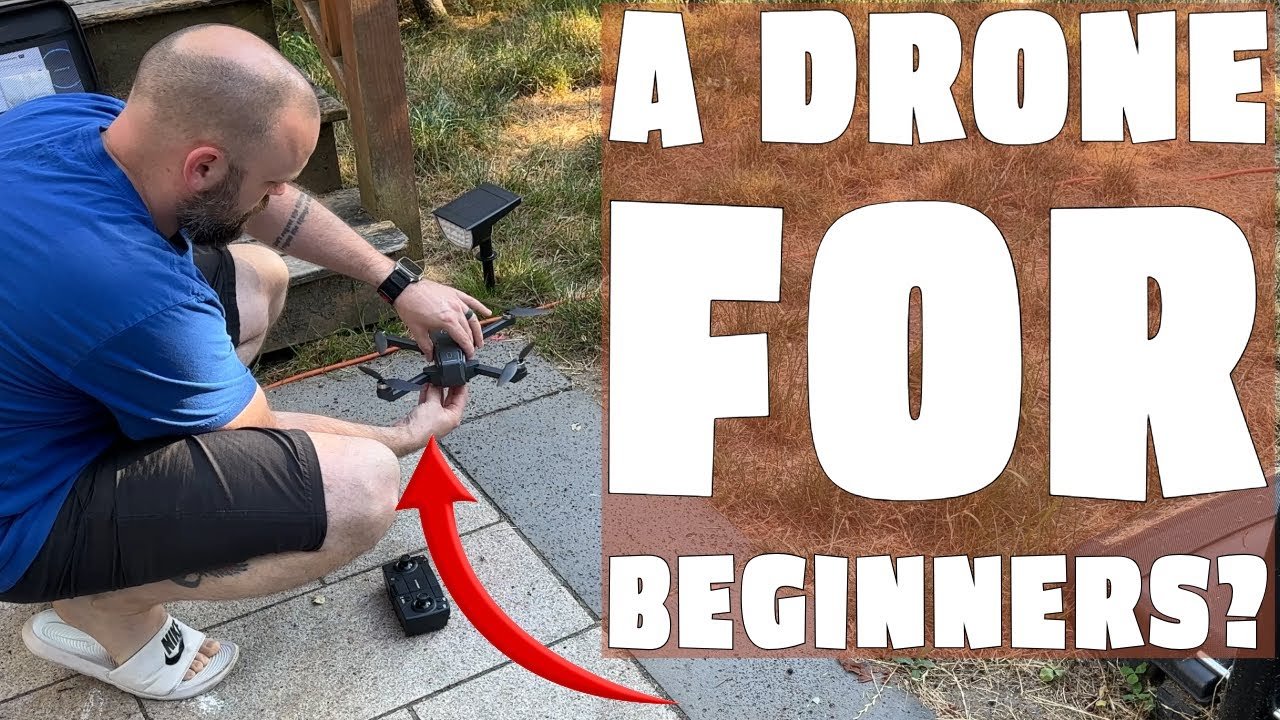
Quick answer: The K610 GPS drone was easy for me to control on my first flight, and it folded down nicely for travel. The part I’d make time for is setup: the drone needs to be calibrated, and the live camera view goes to a phone over Wi-Fi. I saw the drone return when the battery got low, but this was a first flight, not a test of how far it could fly or how long the battery would last.
- What came in the case
- Calibration and phone setup
- What happened on my first flight
- My take for beginners
What came in the K610 case
My kit came with the drone, its remote, spare propellers, a charging cord and a travel case. The arms fold against the body, which is the feature I noticed right away. I could pack it without leaving the arms sticking out. The shell felt light in my hands. I didn’t put the drone on a scale for this video.
The remote setup is worth a look before you buy. I paired the drone with my phone for the live camera view. If you’re looking specifically for a remote with its own display, that’s a different setup. I tried one in my K600 Pro GPS drone review, where I could do basic flying without using my phone.
How I calibrated the K610 and connected my phone
My footage shows what I did with this unit. Check the instructions that came with yours before takeoff, especially if the controller or app looks different.
- Unfold the arms and set the drone down. I opened it up before setting up the controller. Do this in a clear area with room to move the drone through the calibration positions.
- Start the compass calibration. In my demo, I used the correction button and waited for the beep. I turned the drone flat first, then held it vertically with the camera pointing up and turned it again. I made about two or three turns in each position on camera. Follow the prompts for your unit instead of treating that count as a rule.
- Connect the phone to the drone’s Wi-Fi for the camera view. The K610 in my video used a 5 GHz Wi-Fi connection with my phone. If the controls are responding but you don’t have a live picture, check that your phone actually joined the drone’s network and that you’ve opened the app for your model.
A quick U.S. flying note: a light drone is not exempt from every rule. Check the FAA’s registration guidance and recreational flying requirements before flying. The recreational registration exception is limited, and recreational pilots still need TRUST. I didn’t verify my takeoff weight or Remote ID status in this video.
What happened on my first flight
Once I was up in the air, the K610 felt stable to me and easy to steer. The footage looked smooth to me on that flight. I showed the adjustable camera, but I didn’t compare recording samples or measure resolution. The listing’s camera claims aren’t what I’d use to judge the quality of this one short test.
When the battery got low, I saw the drone come back. That was useful to see in person, but it only tells me what happened on that flight. I’d still make sure I had a clear area for landing and keep an eye on the battery. I mentioned other modes like Follow Me and Circle in the video; I didn’t put those through repeatable tests here.
My take on the K610 for beginners
What I liked most was how easy it felt to fly after setup. If you want something that folds into a case and you don’t mind using your phone as the screen, that’s the strongest case for the K610 from my test. If a built-in screen is the priority, I’d also look at the separate F180 drone review. I cover its controller screen and explain what I still used the app for. These were separate tests, not a side-by-side flight.
Affiliate disclosure: As an Amazon Associate, I earn from qualifying purchases. I may earn a commission if you buy through the link below.