
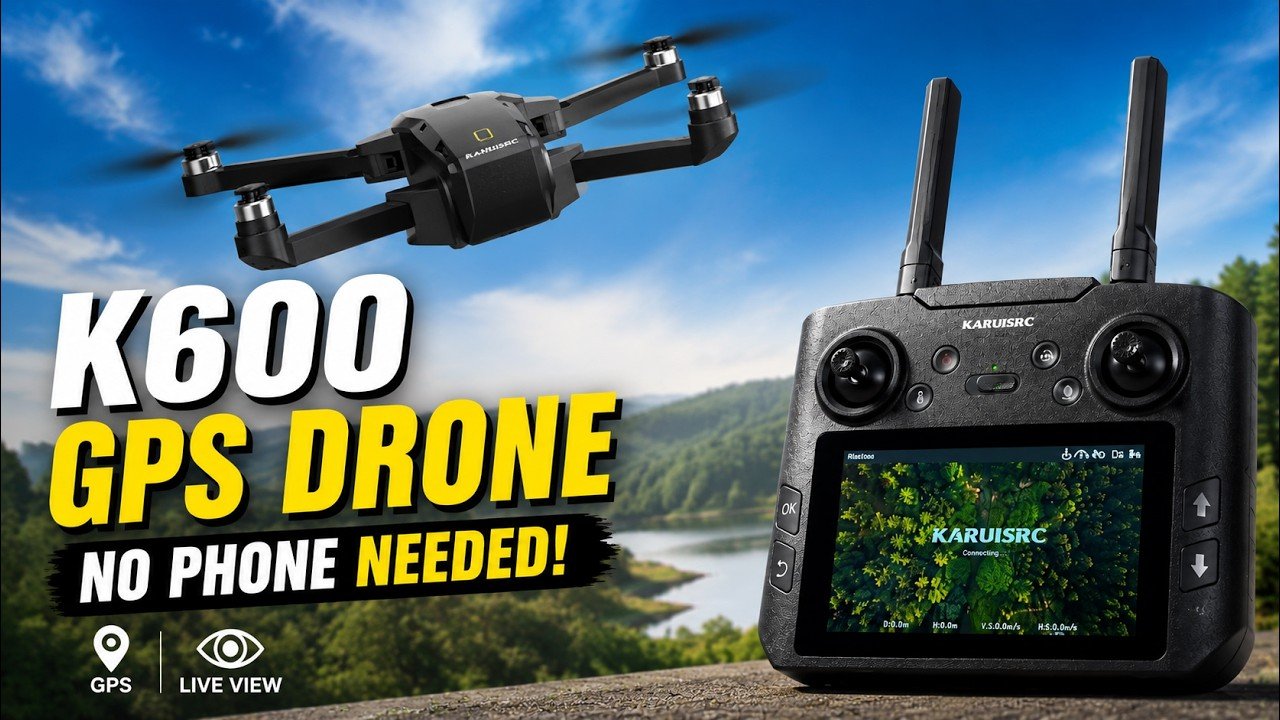
The built-in screen is what caught my attention with the K600 GPS drone. I can turn on the controller, pair the drone, and fly without attaching my phone. For someone who wants a straightforward flight session, that is a useful difference.
In this K600 Pro GPS drone review, I’m sharing what I demonstrated in my setup and first-flight video: the controls, indoor and outdoor calibration, Return-to-Home, and the limitations I noticed. The big qualification is that phone-free flying does not mean every feature works without an app.
Affiliate disclosure: If you buy through my links, I may earn a small commission at no extra cost to you. Your price stays the same, and it helps support SLVRBCK Troop. As an Amazon Associate, I earn from qualifying purchases.
My verdict: convenient basic flying, with a few tradeoffs
The K600 is worth considering if your main priority is a GPS drone with its own controller display. I liked being able to see the camera feed without using my phone, and the takeoff and landing controls were simple to demonstrate. However, Follow Me, orbit, and flight-path functions require the app. I also experienced a frozen live image during the outdoor flight, even though I could still control the drone.
That makes this a convenience-focused option to investigate, rather than a drone I would recommend solely for dependable aerial filming. My conclusions come from the setup and flights shown in the video; this is not a long-term durability test or a measured range, battery, or camera-resolution test.
Watch my K600 setup and first flight
What you can do without a phone
The controller has a built-in screen, two adjustable antennas, and physical thumb sticks. The drone’s arms fold out, and my package included a USB-C charging cable and spare propellers. The screen removes the need to mount a phone for the basic flying and live-view tasks I showed.
- Basic flight: Pair the controller, start the propellers, take off, steer, and land using the physical controls.
- Live camera view: View the feed on the controller’s screen, subject to the reception limitation I experienced.
- Recording: I demonstrated the controller’s recording button; holding it produced a double beep when recording started.
- Return-to-Home: I demonstrated a return command from the controller during the outdoor flight.
- App required: Follow Me, circling around the pilot, and programmed flight paths require the phone app.
If you mainly want to launch, fly, and land, the built-in screen is the feature to focus on. If you are buying specifically for tracking or automated shots, expect to use your phone.
Before your first flight: pair and calibrate
Do the setup on a level surface with the propellers clear of people and objects. Charge the drone and controller, inspect the propellers, and follow the instructions supplied with your particular unit. My video helps you recognize the controls, but the current manual and on-screen prompts should guide the exact sequence.
1. Pair the controller and drone. I turned on the remote, then the drone, and waited for the connection beep. You can see this at 0:49 in the video. Pairing is separate from confirming that GPS is ready.
2. Choose the correct mode. For my indoor demonstration, holding the return button switched the controller from GPS mode to indoor mode. That sequence starts at 1:00. Indoor mode should not be treated as outdoor GPS positioning or as protection against hitting furniture.
3. Complete the level/gyro calibration. In the demonstration, I moved both sticks to the position shown on camera and waited through the flashing lights. See 1:12 for the indoor sequence and 2:38 outdoors. Use the visual demonstration and your manual rather than guessing the stick direction from a written clock position.
4. Follow the outdoor compass prompts. Beginning at 2:46, I activated the calibration instructions on the controller. My unit prompted three horizontal rotations, followed by three rotations with the nose pointing upward. Follow the prompts your controller actually shows.
5. Confirm GPS readiness and the home point. Completing a compass calibration is not the same as confirming satellite lock. Before outdoor takeoff, check the GPS and home-point indications described in your manual. I did not establish a universal satellite-count requirement in this demonstration, so I would not use an invented number as a launch checklist.
Takeoff, hover, and landing: what I demonstrated
For the indoor flight, I pressed the lock/unlock control to start the propellers, then used the takeoff button. The drone hovered while I demonstrated height changes and turning. The landing button brought it down; I also showed that I could start another flight and raise it manually.
Those controls were easy to demonstrate, but a successful hover in my video does not establish how the drone will behave in every room or in wind. For a first flight, use an open area with plenty of clearance, keep movements small, and learn the landing control before trying automated modes.
The live view froze during my outdoor flight
This is the main limitation I want a buyer to know about. At 3:37, I explained that the image froze after the drone reached a certain height. I could still control the aircraft, and the image became available again after bringing it lower.
I did not measure the height or distance where that happened, and the video does not establish the cause. It would be misleading to turn that moment into a precise range specification or promise that a setting change fixes it. Keep the drone in sight and do not rely on the screen alone to tell you where it is.
Return-to-Home and low-battery behavior
I used the controller’s return button during the outdoor flight, and later showed the drone starting to return as the battery ran low. These are useful features, but the demonstration is not a guarantee that the drone will always return safely.
Before relying on Return-to-Home, understand how your unit records its home point and handles the return route. Leave room for landing and return while you still have battery available. This video does not demonstrate obstacle avoidance, so I would not expect the K600 to detect and route around trees or other obstructions.
Does the app improve the video?
In my demonstration, I felt that video saved through the app looked a little better than recording directly from the drone. That is my visual impression, not a verified comparison of native resolution, bitrate, or camera specifications. Buyers whose main goal is footage quality should judge the actual sample video rather than assume the built-in screen guarantees better recordings.
Who I think the K600 suits
- Consider it if: You want physical controls and a built-in display for ordinary flying without tying up your phone.
- Plan on using the app if: Follow Me, orbiting shots, or flight paths are your main reason for buying.
- Look more closely before buying if: A consistently reliable live feed or documented camera performance is essential to you.
For another firsthand drone review, see my F180 drone review. Each article focuses on what I actually demonstrated, so you can compare the strengths and limitations instead of assuming the models share every feature.
Check the current K600 listing
My favorite idea here is simple: a controller screen that lets me leave the phone out of a basic flight session. The app requirements and live-view freeze are the tradeoffs to weigh against that convenience.
Check the K600 drone on Amazon. Confirm the exact model, included accessories, and current price on the listing before ordering. This is an affiliate link; I may earn a small commission without changing your price.